

Google introduced Desktop Mode on Android last year, rolling it out to Pixel devices first in March this year.
It heavily borrowed from Samsung DeX, but it still has plenty of rough edges that need polishing.
I tested it again to see if I could offload my entire workday onto it without losing a chunk of productivity.
While the current version might be far from my ideal workstation replacement, I can’t say I don’t love it. It could be a true productivity utility.
Desktop Mode is a work in progress
Samsung DeX does much better
I put Desktop Mode back into service a few months ago and ran it as my main workstation for a few days, longer than my current trial.
It was fluid overall, but it felt like a beta, especially compared to Samsung DeX, which I used extensively on my Samsung Galaxy Flip 7 and Tab S10 FE.
There were hiccups, especially with ease and accessibility, such as the wallpaper not syncing properly to the monitor and the inability to save workspaces like I can on DeX.
Since it shipped, the tool hasn’t seen any dramatic improvements and has largely stayed as is.
If anything, the updates focused on minor refinements to app windowing and baseline performance.
Still, it’s worth checking whether those previous frictions were addressed or remained unsolved, which would be shameful to ignore.
Regardless, that alone makes it reasonable for anyone to give Desktop Mode a shot right now, or keep it as a backup if your laptop or primary PC gives up on you.
You only need a cable to start
Cheap accessories work nicely with my Pixel
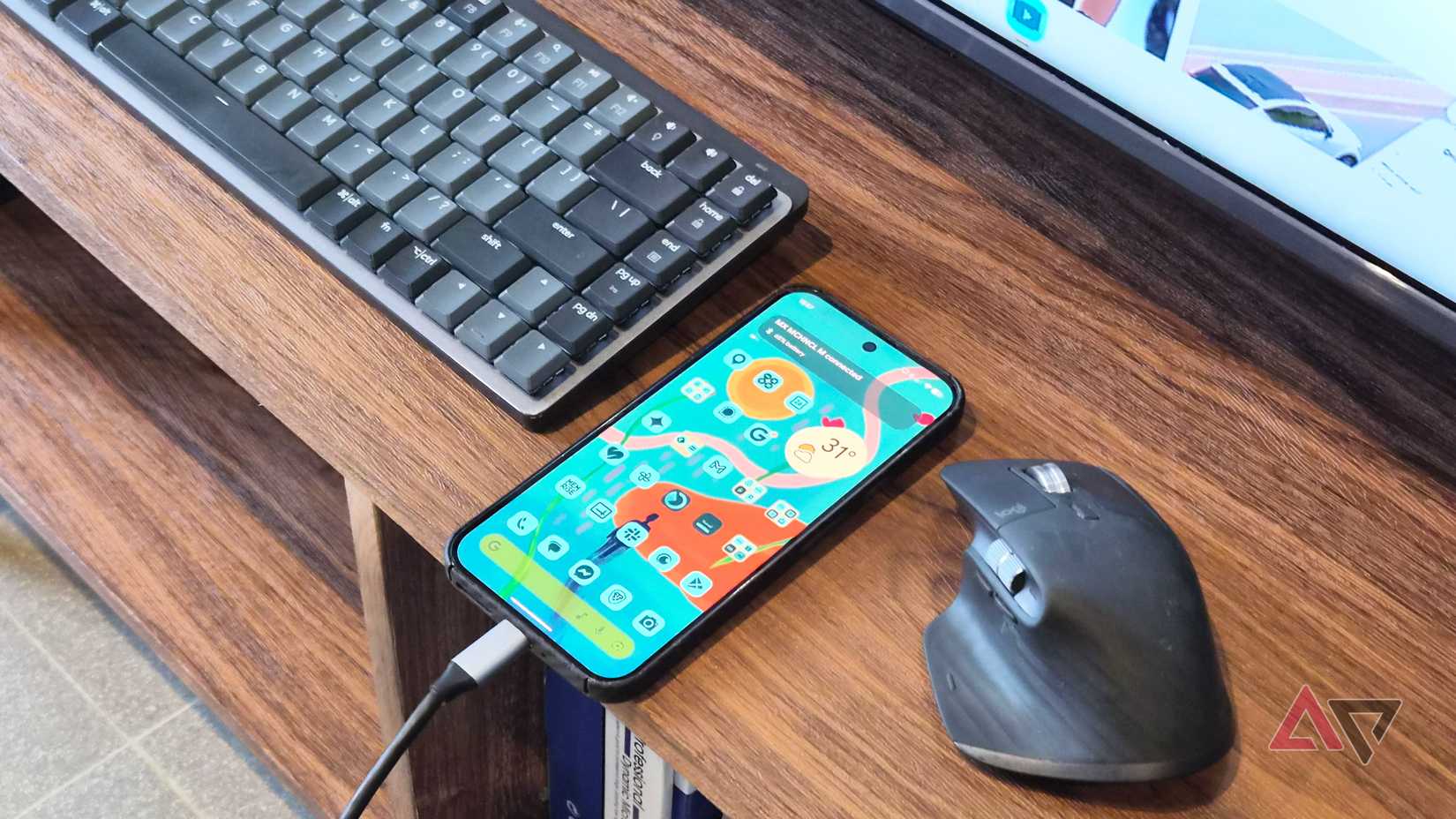
My setup was simple, as I only needed a USB-C to HDMI cable to connect to my Asus ROG monitor.
If your display supports video input via Type-C, you can use a USB-C to USB-C cable that carries a display signal.
If your monitor supports Power Delivery, it can also charge the Pixel while connected.
A better alternative is a USB-C hub, but check the specs to confirm it supports both pass-through charging and video output at the same time.
Using a direct USB-C to HDMI cable is one of the major quirks of my current workflow, since I have to unplug it when I need to charge my Pixel 9 Pro XL.
Still, if you want a few hours of continuous, uninterrupted work, that’s plenty.
I also appreciate that Google expanded peripheral support on Android, which is useful in Desktop Mode, since I had no trouble pairing my wireless Logitech MX Keys Mini keyboard and MX Master mouse.
My Pixel 9 Pro XL even paired nicely with a cheap foldable keyboard, which I prefer when traveling.
You can also customize keyboard shortcuts, cursor sensitivity, and pointer size.
My only complaint is that, when I’m working in a text editor with two windows, duplicate typing indicators appear even when I move the mouse to a different text field.
There’s no true desktop continuity
Google desperately needs to fix this
Although I didn’t close my open apps or workspaces yesterday or restart my Pixel phone, I started with a blank desktop.
This contrasts sharply with Samsung DeX, which saves your active workspaces and windows so they return the next time you plug in your Galaxy phone, as long as you don’t manually clear the apps.
This missing continuity is a major friction point that keeps many users from relying on Desktop Mode, especially since most people will use it to pick up or finish ongoing tasks like editing documents.
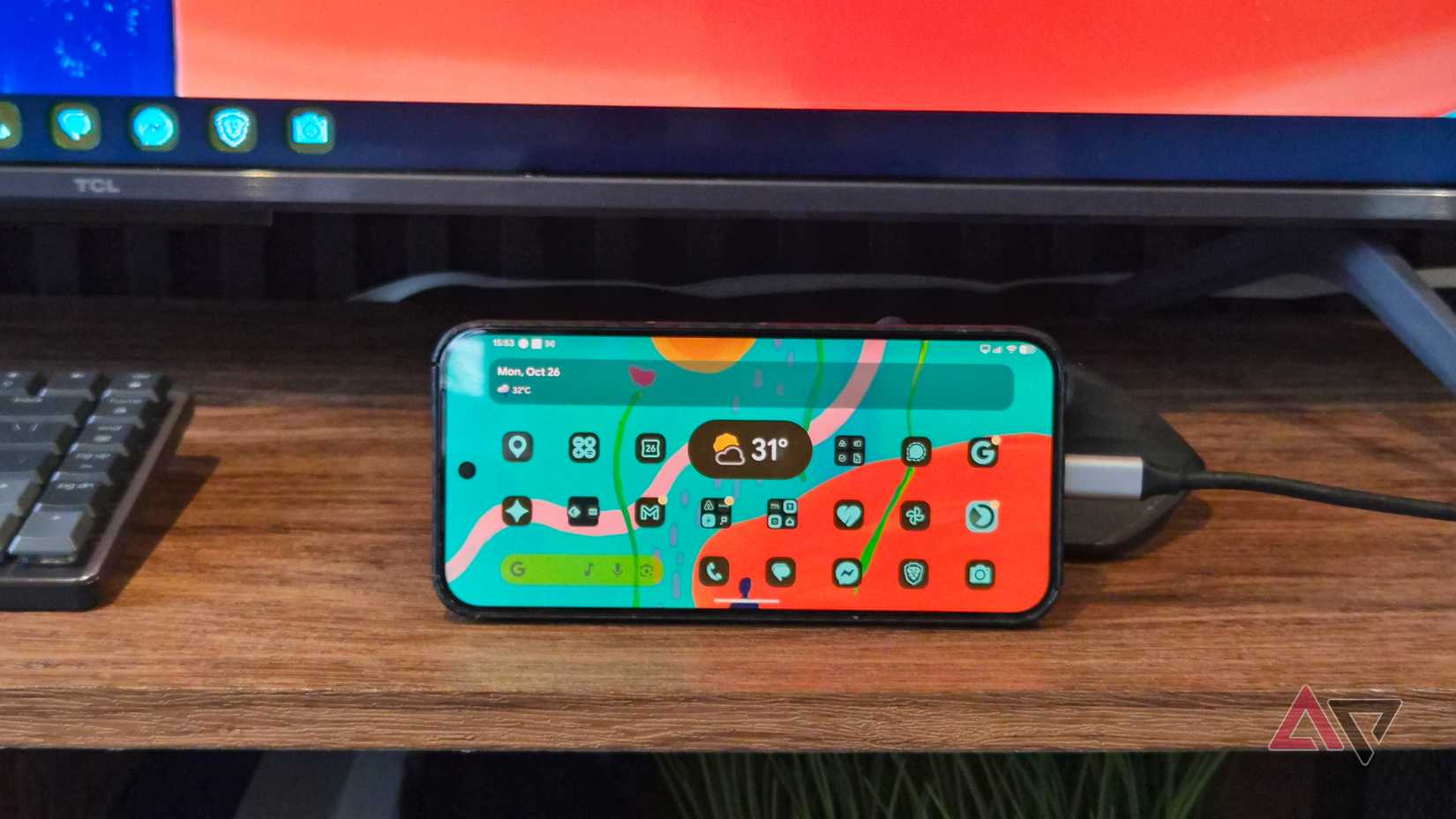
Another small gripe with Desktop Mode is that I can’t keep my Pixel phone locked or run an ambient screensaver while I work on the monitor.
There is still no separate toggle to set the handset display independently, which is another area where DeX outshines it by offering dedicated controls for both the phone and the external monitor.
This limitation extends to wallpapers. With DeX, I can assign a distinct wallpaper on my Galaxy phone separate from the monitor.
It’s a minor aesthetic difference, I admit, but it makes for a much more cohesive desktop experience.
Google apps look hideous on a big screen
Scaling options remain painfully limited
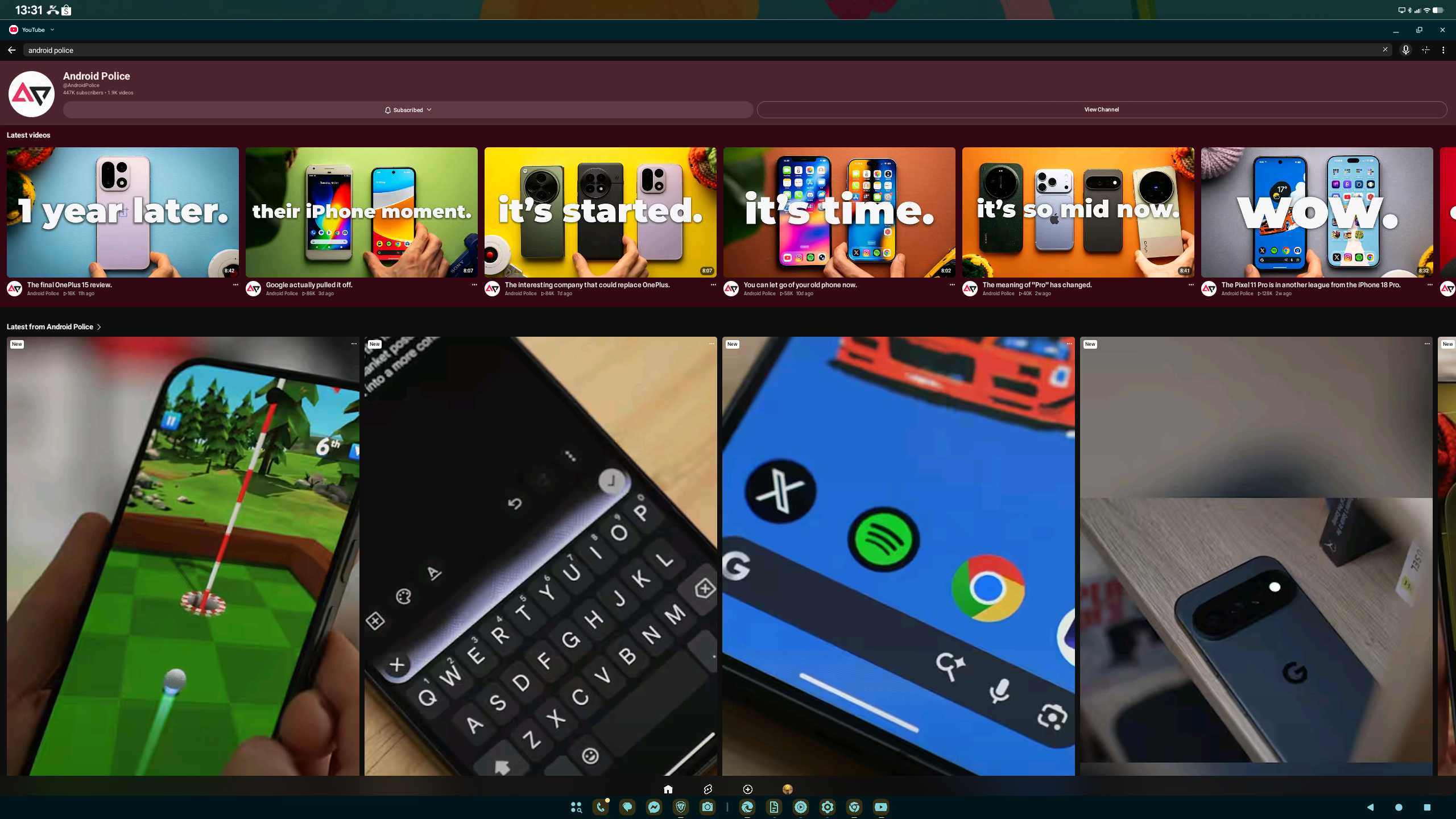
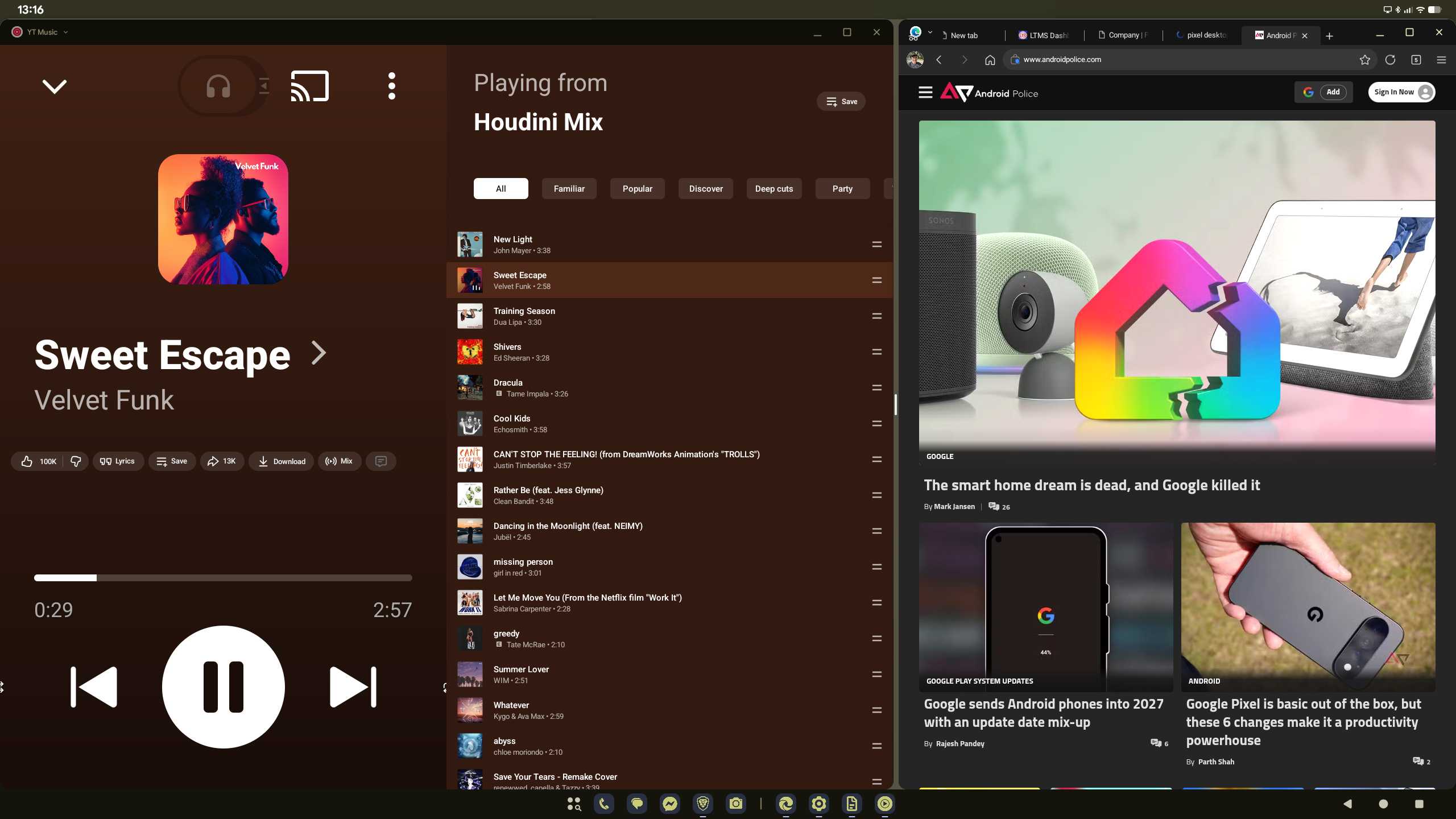
A bigger concern with Desktop Mode is that many apps, including first-party utilities, are poorly optimized for monitors or larger displays.
YouTube looks wonky, with the interface resembling an inflated, awkward version of the mobile layout.
I tried closing and relaunching YouTube, but it stayed stuck with the same poor scaling, oversized video cards, and tiny navigation shortcuts.
YouTube Music has a much better dual-pane layout, with the left side housing playback controls and the right side reserved for tracklists and queues.
A reliable workaround I found is opening YouTube’s web version in a browser, which looks much cleaner and more intuitive. I also toggle on the desktop site view, which mirrors the desktop layout.
Some third-party apps remain locked or unoptimized, too. For example, Shopee has no native way to force it to maximize across a landscape workspace, though that ultimately falls on app developers rather than Google.
To adjust scaling and text size, look for the dedicated slider in the External display settings menu.
It also includes toggles to adjust output resolution, refresh rate, orientation, and external display behavior.
Window management is reliable in Desktop Mode
Performance remains solid
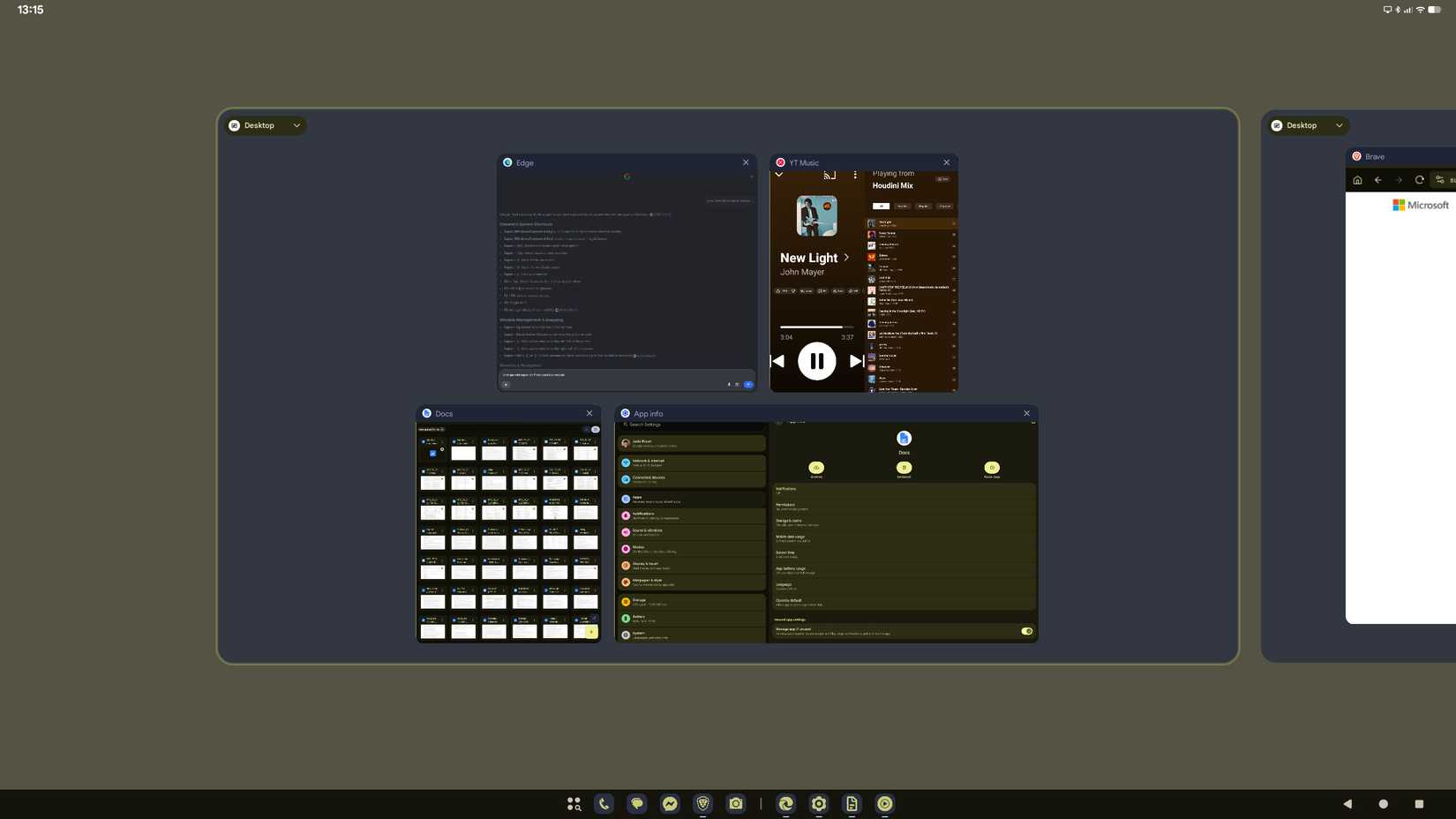
Snapping app windows into place felt instantaneous, as did organizing multiple tabs.
I placed two browsers side by side with another utility open without running into performance hiccups.
I can resize windows freely or layer extra windows across the same canvas without issue.
What I miss from my Windows laptop is dynamic edge resizing, since snapping here isn’t responsive, forcing me to manually drag the adjacent window to align with the current panel.
Maybe I’m just nitpicking, but it’s a subtle touch that would make a big impact on everyday multitasking.
I ran multiple workspaces without hitting a wall, and even with heavy CMS tasks and apps running simultaneously, my Pixel 9 Pro XL handled Desktop Mode reliably.
I pushed the hardware to its limits by piling more processes into the pipeline.
At first, navigation stayed smooth with seven apps running, including two active browsers with multiple tabs.
When I tried to open more, I noticed minor stuttering when switching between windows and jumping across desktops.
At one point, a dialog popped up asking whether to wait for Chrome to respond or force-close it.
Generally speaking, you won’t encounter that sluggishness as long as you keep a modest number of programs open.
At the same time, this was on my Pixel 9 Pro XL, so newer hardware like Pixel 10 and Pixel 11 should deliver even more stable window management.
Desktop Mode isn’t perfect, but the vision is there
Can Desktop Mode fully replace your traditional laptop or workstation? The answer depends on what you expect to accomplish.
Desktop Mode is far from a complete, perfect utility. It still has plenty of rough edges that need serious polishing, and it undoubtedly has more hidden limitations.
But if your everyday routine involves drafting a lengthy report in a text editor or juggling streaming apps while browsing on an external display, Desktop Mode is definitely usable.
Google’s vision for Desktop Mode is clear, and I’m confident it will become more genuinely impactful than Googlebook ever was.
