


I cover Android with a focus on productivity, automation, and Google’s ecosystem, including Gemini and everyday apps. With a background in engineering and software development, I tend to go beyond surface-level tips.
Before joining AP, I wrote for tech publications such as Gizbot in 2023 and iJunkie (formerly known as iPhoneHacks) from 2021 to 2022.
Paying with my phone should be the fastest part of the checkout process.
However, every time I went to pay at a store, I’d fumble through Google Wallet, hunt for the right card, or wonder if I had the loyalty pass I needed.
My digital wallet had become a cluttered list, with old cards, duplicate passes, and items I rarely used.
After spending a few minutes cleaning up and reorganizing my cards, paying with my phone became the quick, seamless experience it was supposed to be.
Here’s what I changed in Google Wallet to make checkout noticeably smoother.
I removed old and unused cards
It was time to clear out the clutter
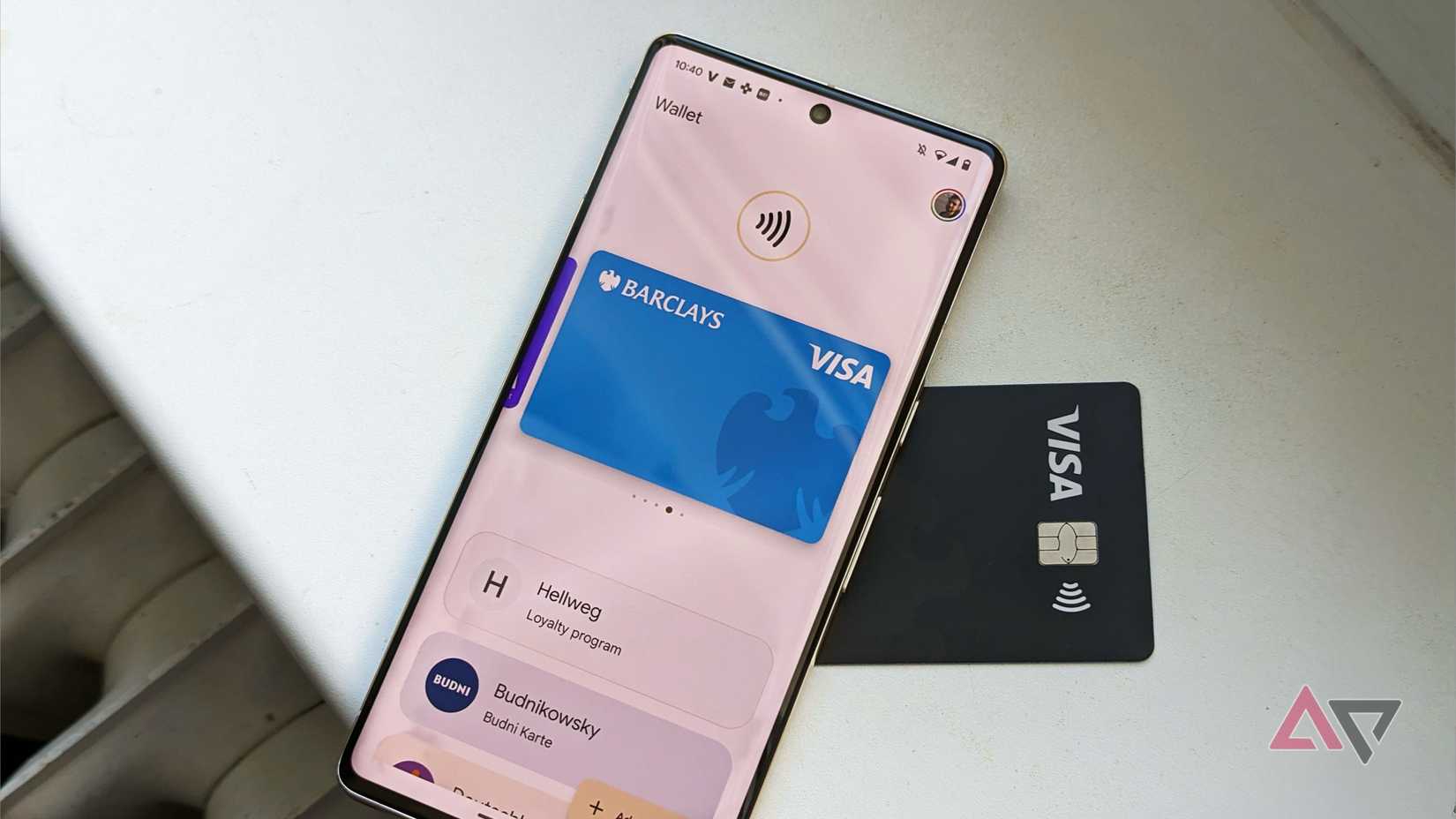
The first thing I noticed when I opened Google Wallet was how many cards I no longer used.
Expired debit cards and an old credit card I had replaced were still sitting there. None of them were useful, but they cluttered the wallet and forced me to scroll more than necessary at the payment terminal.
Cleaning this up was straightforward. In Google Wallet, I opened the card, tapped the three-dot menu icon in the corner, and selected Remove payment method. I repeated these steps for other outdated cards.
It only took a few minutes, but the difference was noticeable right away. With fewer cards on the list, it’s easier to quickly see the one I use when I’m standing at checkout.
Clean up loyalty cards and passes
Remove the ones that are no longer useful
Payment cards weren’t the only things cluttering my wallet.
Over time, Google Wallet accumulated a surprising number of loyalty cards, event tickets, and old passes.
Some were from stores I rarely visit, while others were tied to events or trips that had already happened. None of them were useful anymore, but they still made the wallet feel crowded.
To remove them, I opened the pass I didn’t need, tapped the three-dot menu icon in the corner, and selected Remove. I reviewed the list and removed outdated items or anything I’m unlikely to use again.
The cleanup made the app feel much more organized.
Now, when I open Google Wallet, I don’t have to scan past a pile of old tickets and loyalty cards. Everything visible is something I use, which makes the checkout experience feel quicker and less chaotic.
Reorder cards so that the important ones are at the top
The fast and easy way to find your most-used cards
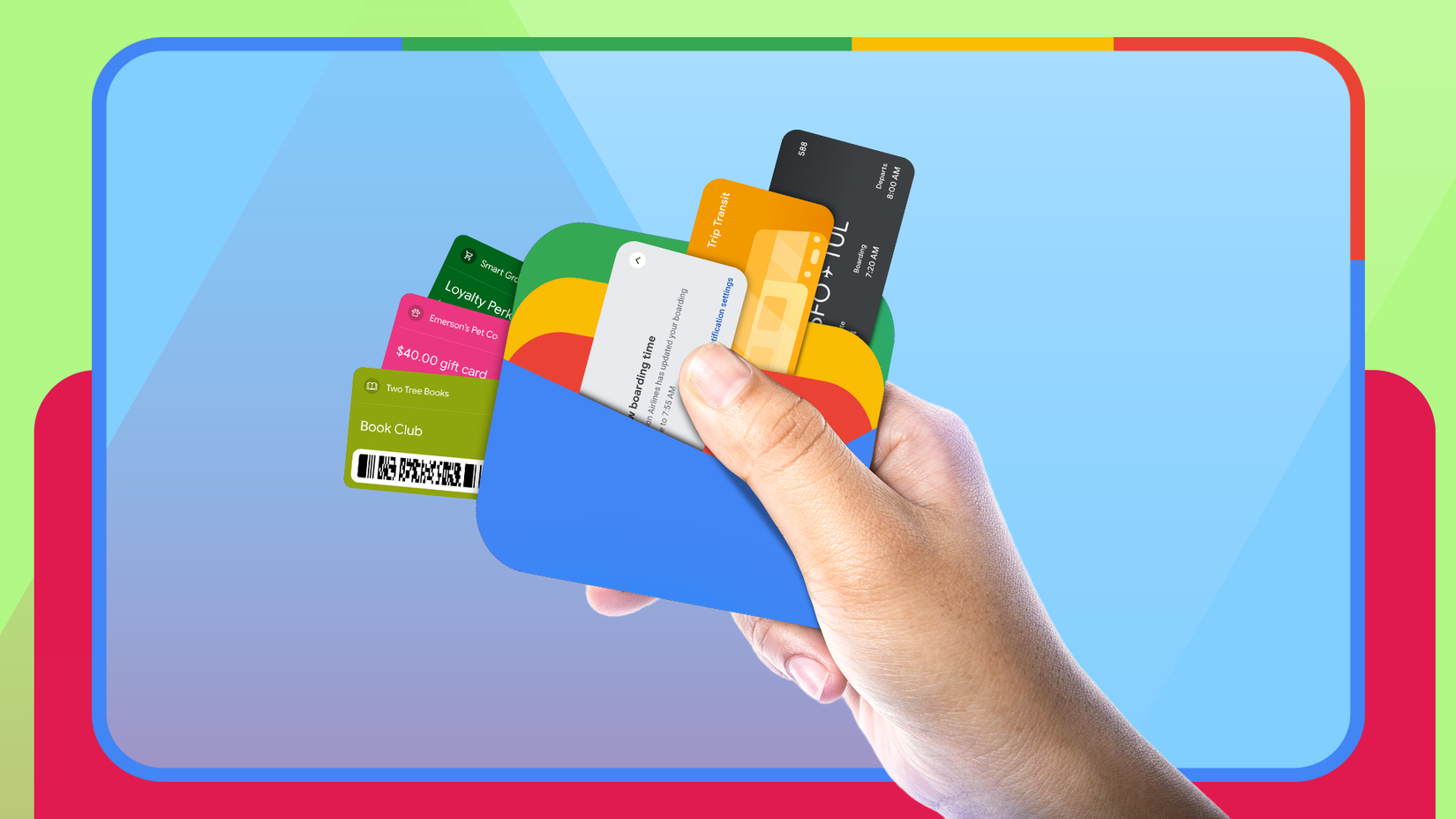
After removing unused cards, the next improvement was organizing the remaining ones in a more practical order.
In many cases, Google Wallet doesn’t automatically put your most-used card at the front, so you have to swipe extra times before you tap to pay.
Reordering the cards fixes that. Open the Google Wallet app, swipe to the last card, and tap the Edit card order icon. Alternatively, click your profile icon, tap Payment methods, and select Edit card order. From there, press and hold any card, then drag it to the desired position.
Placing the primary payment card at the top ensures it appears first when the wallet opens at a payment terminal. You can place backup cards directly underneath for easy access.
This adjustment eliminates unnecessary swiping, making wallet payments quicker and more intuitive.
Google Wallet also lets you reorder passes with a simple drag-and-drop gesture. I opened the app, pressed and held the one I wanted to move, and dragged it higher in the list.
Get quick access from the lock screen
No more holding up the line while you find your pass
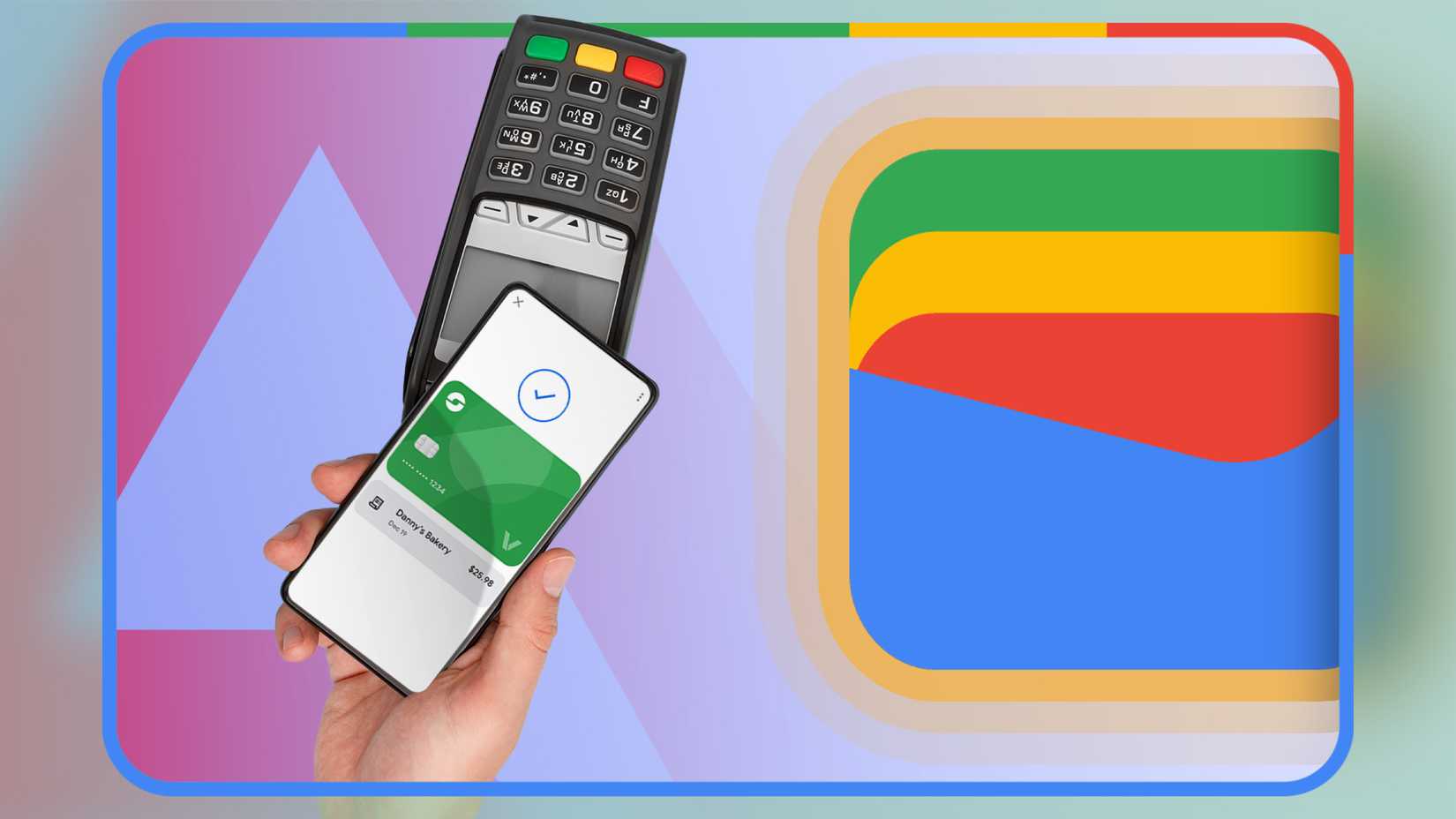
Accessing a wallet app to display a boarding pass or loyalty card can feel unnecessarily slow, especially when time is crucial, like at busy checkout counters or public transport gates.
Activating Quick Access from the lock screen removes that friction by letting the wallet appear instantly.
On many Android devices, you can add the wallet shortcut to the lock screen. On newer Pixel phones running Android 16, you can access it through the power-button shortcut.
Another way to open Google Wallet is by adding its Quick Settings tile. This places Wallet in the Quick Settings panel, so you can launch it with a single tap instead of searching for the app on your home screen.
These small changes make a noticeable difference in everyday scenarios.
Boarding passes, event tickets, transit cards, and store loyalty programs become accessible in seconds. Instead of fumbling through apps while holding up a line, the relevant pass appears immediately, ready to scan.
Reduce notifications and digital clutter
Mute those push alerts
While cleaning up Google Wallet, I noticed how many notifications some loyalty cards sent.
Stores often push alerts about offers, rewards, or promotions tied to those cards. When you have several saved in the Wallet app, those notifications can add up quickly.
Instead of deleting the cards, I turn off notifications for the noisiest ones. To do this, I open the card in Google Wallet, tap the three-dot menu icon, and toggle off Get notifications for this loyalty card.
This way, I can keep the loyalty cards I use without my phone buzzing with promotional alerts.
A small cleanup that makes paying feel effortless
Cleaning up Google Wallet didn’t take long, but it made a noticeable difference in everyday use. I removed old cards, organized the ones I use, and reduced unnecessary notifications, which made the app feel much less cluttered.
Now, when I open the Wallet app at the checkout counter, the correct card appears, and everything works as expected.
It’s a small bit of digital housekeeping, but it makes paying with my phone feel smoother.
