

One UI offers deep customization that can make personalizing the home screen exceptionally efficient.
In my case, when I got bored with my Google Pixel, I jumped over to my Samsung Galaxy Z Flip 7.
Not because I needed to switch it to my daily driver, but because its extra personalization lets me practice my creative side.
After a few days tweaking my favorite home screen layout, I’ve listed which controls and features actually matter.
It’s not entirely about using the Good Lock suite, but a combination of native One UI features, so you don’t need to have a rocket science degree for this one.
Unlock your home screen layout
Add more space for a roomier screen via Home Up
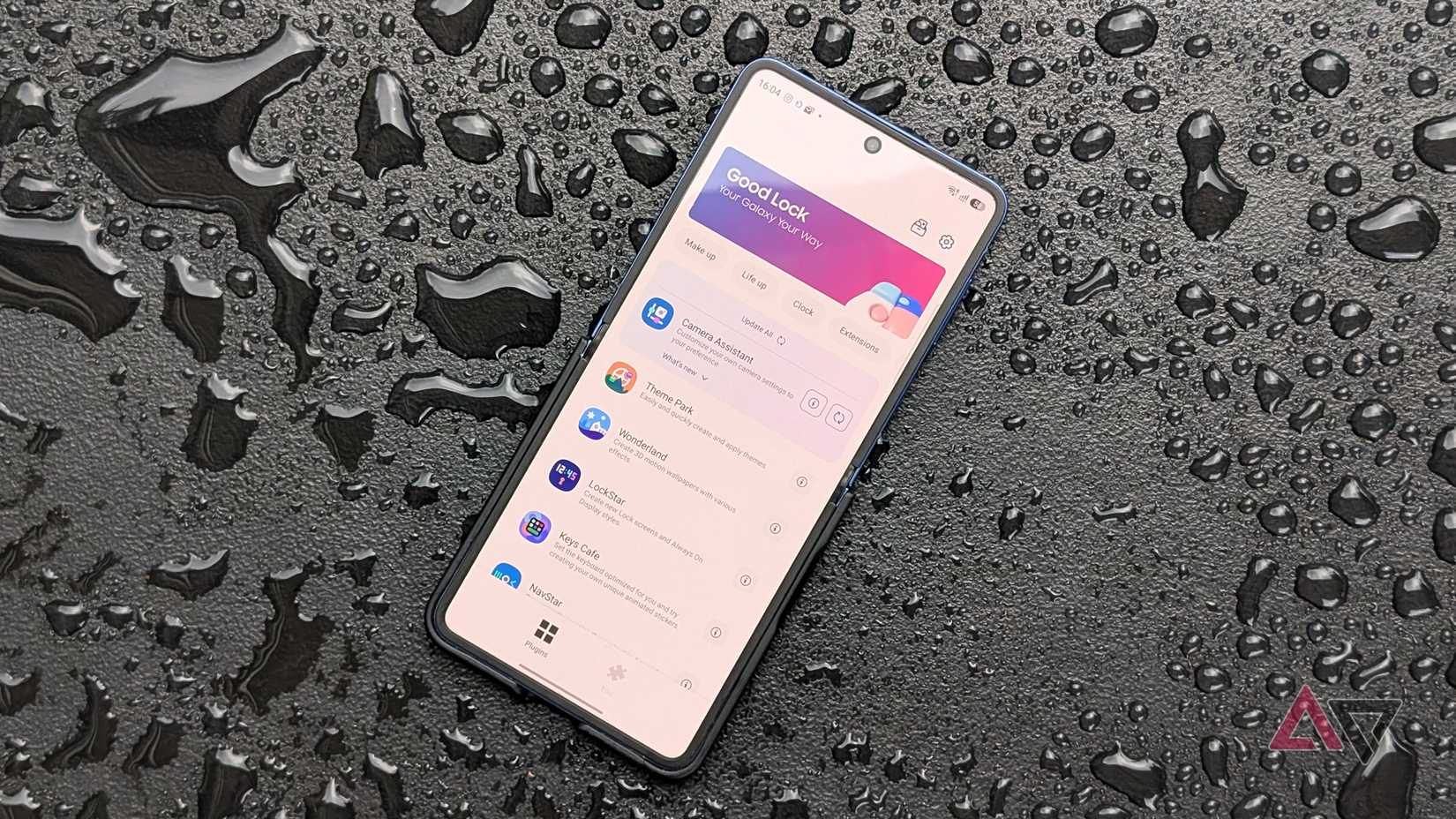
By default, the native home screen uses a 4×6 or 5×6 grid. That seems generous, but you can’t maximize screen real estate, especially on a foldable phone like a Flip with a taller aspect ratio.
I installed the Home Up module from the Good Lock suite to increase the grid to 5×7 or higher, which is enough to add another row to fit my favorite widgets and shortcuts.
For example, I use the top section for Now Brief and weather widgets, reserve the middle for large app folders, and keep individual apps and a media player at the bottom.
For a cleaner look, I suggest sticking with a 5×6 layout. This density also works well for smaller models like the standard Galaxy S26.
To make the canvas feel more spacious, reduce app and widget sizes to add breathing room between items.
Hiding app and widget labels also creates a minimalist look that may seem like a tiny tweak but can make a big impact.
Create themed app icons
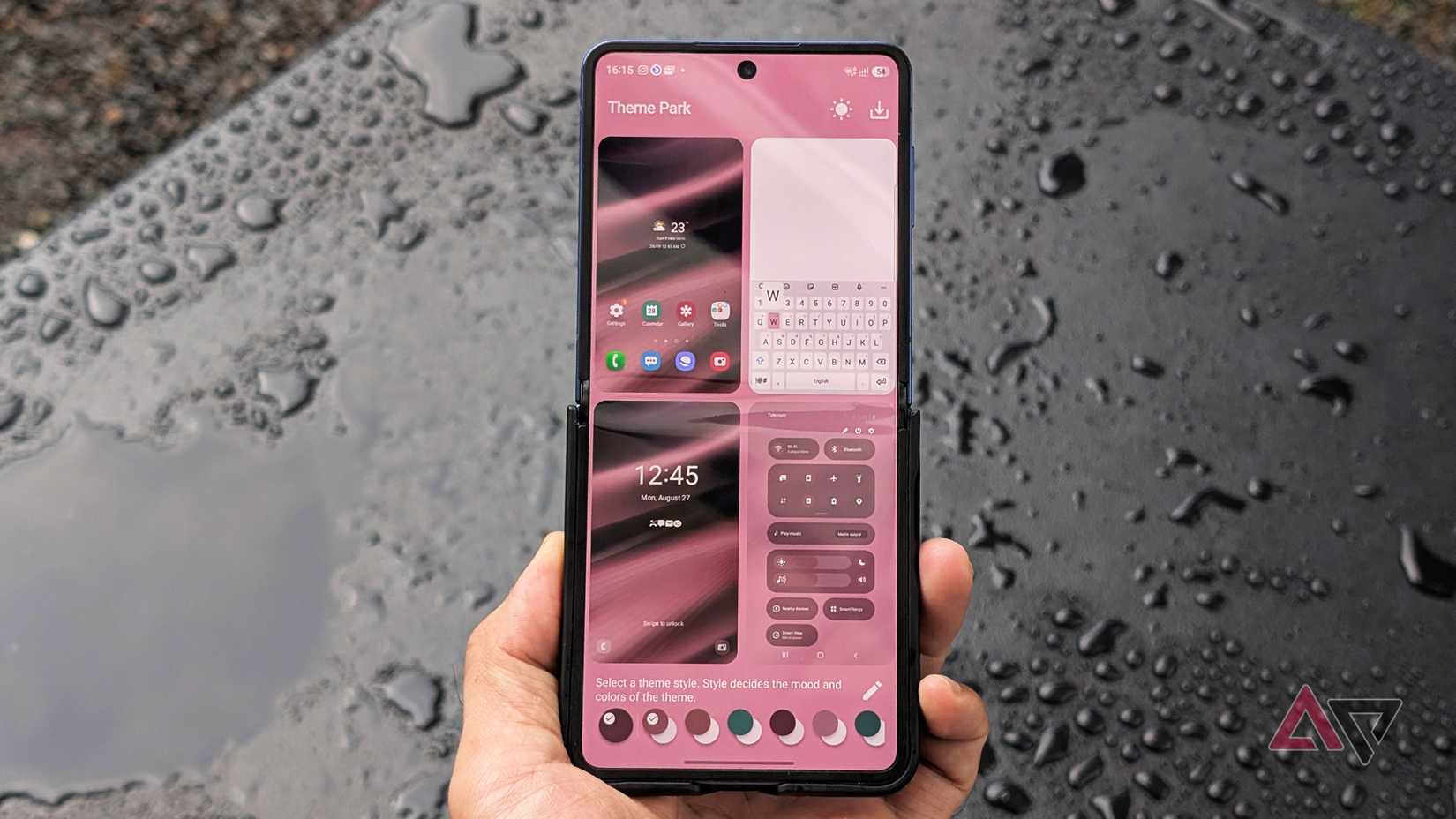
Mirror Pixel app icon styling using Theme Park
I really like the tinted app icons on my Pixel Launcher, which I have always wanted to replicate on my Galaxy device.
At first, I relied on third-party icon packs, but my preferred ones are either paid or not straightforward to apply.
While the One UI color palette is fantastic, it doesn’t support every app icon. This leaves a patchy, uneven look across my screen.
Good Lock has a module for personalizing the interface, complete with a dedicated icon maker.
Theme Park lets me create custom icon packs, including mirroring my Pixel’s uniform monochromatic app icons.
It’s simple to use, and you don’t need to overhaul the entire theme since it only affects app icons.
In the module, go to Icons, then pick the shape, then select the style preset.
I created a frosted-glass design similar to iOS 27, which pairs cleanly with minimalist wallpapers. However, my favorite setup is picking Duotone and Filmgrain.
The former applies a unified shade across all app icons, a nifty trick that the native system color palette cannot pull off.
If you want an E Ink or Kindle aesthetic or dig a black-and-white vibe, I recommend picking Filmgrain.
You can even adjust grayscale and noise intensity to match your exact liking.
Change shapes and colors for a cohesive layout
Not all users realize that One UI widgets don’t just provide glanceable information. They can also help you style your phone.
While they may seem like basic customization toggles, you can personalize your widgets’ look with size and shape.
Many native widgets are now dynamic, meaning you can resize them to trigger different layouts and aspect ratios.
Depending on the widget, you can also adjust color and opacity, or pull background elements from your wallpaper, like with the Calendar widget.
You can also change the shade to match your app icons for a more unified look.
Shape them as circles, clovers, or leaf silhouettes, depending on the overall aesthetic you want and how you prefer to arrange your screen.
This flexibility also applies to stacked widgets, as each stacked card can retain its own distinct visual design.
Add dynamic effects to your wallpapers
Use live wallpapers and floating particle layers
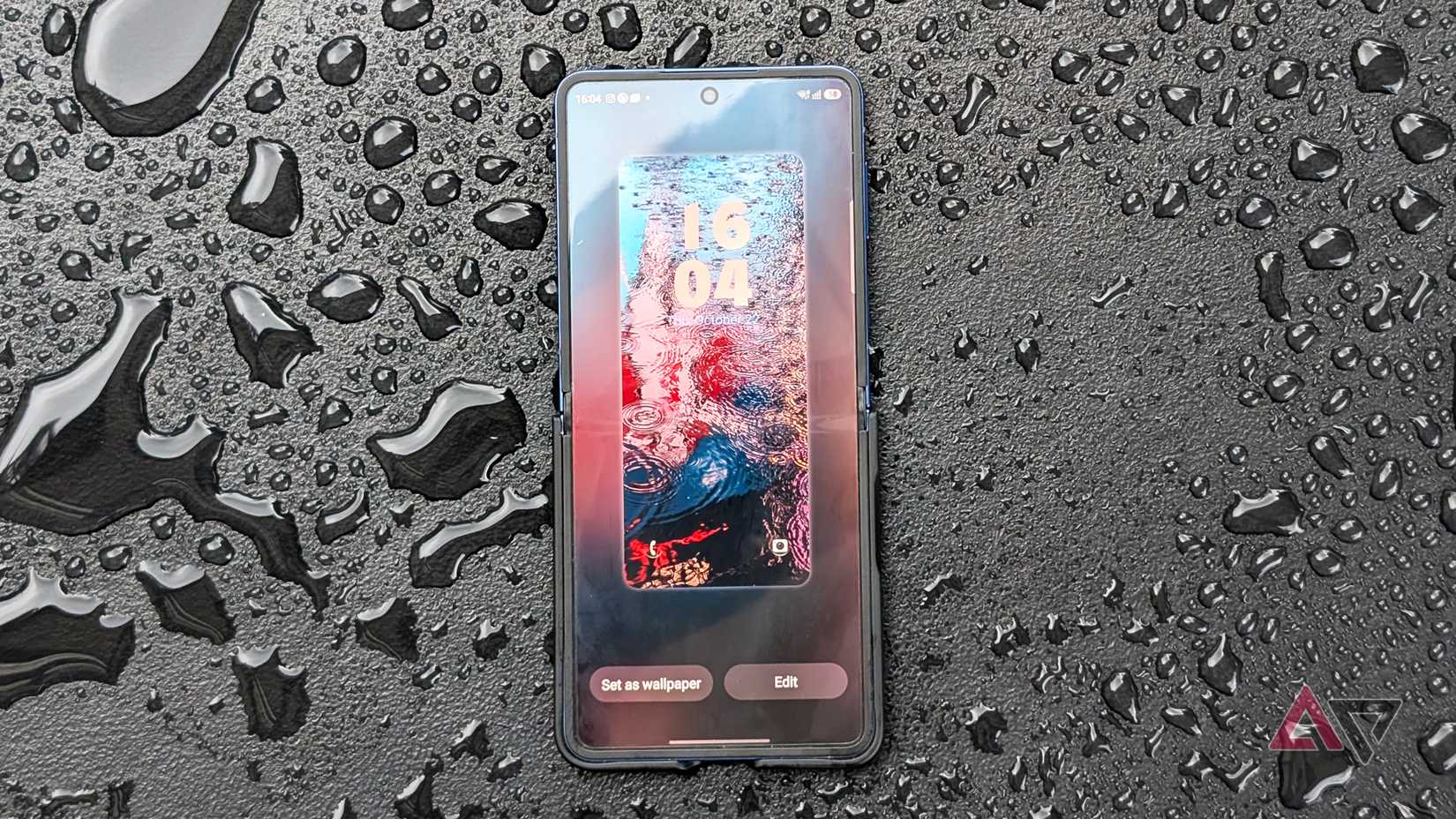
Over many years of owning multiple Galaxy devices, I have never been a fan of One UI’s default wallpaper collection.
I almost always need to install the Google Wallpapers app or search the Galaxy Store for backgrounds.
Even so, finding high-quality backgrounds in Samsung’s storefront is a frustrating chore.
The good thing is that Good Lock includes the Wonderland module for creating custom backgrounds, including animated live wallpapers.
It also features select presets specifically tailored for foldable hardware like my Flip.
My favorite part of the tool is creating live wallpapers through layered motion effects. I can take a static image and add subtle 3D movement or motion.
Alternatively, I can add layers, like another image or video clip, or superimpose particle effects such as snow, rain, and geometric shapes over the main backdrop.
You can also adjust each parameter, but the preset configurations already work fantastically right out of the box.
Combine the 3D wallpaper with themed app icons to create a unique home screen setup that easily beats many paid third-party launchers.
Customize your app folders
A clever hack to pack more shortcuts onto one screen
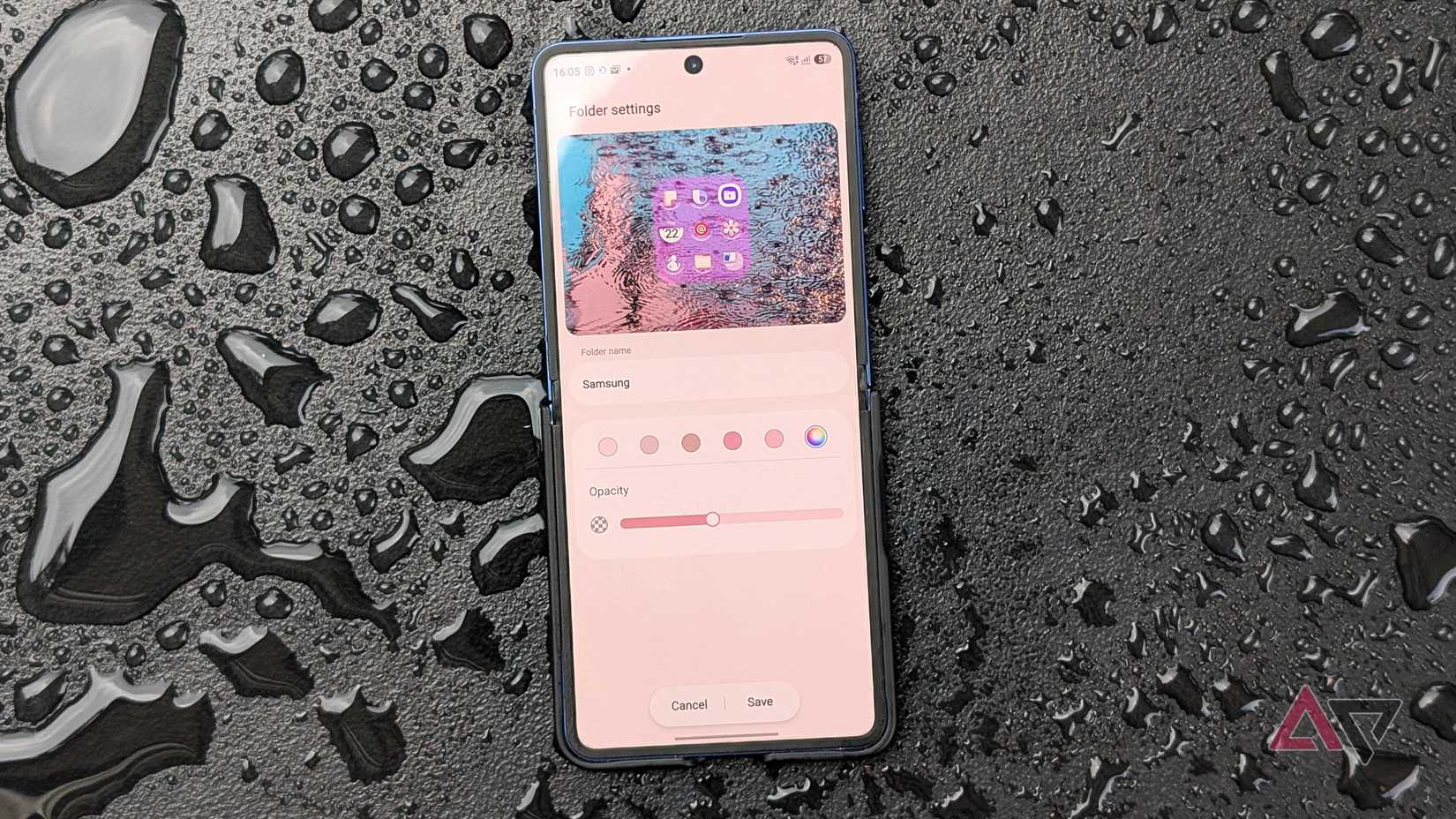
Another simple element that adds big visual impact to my home screen is the humble app folder.
You can leave them as-is, but I prefer to tweak even basic properties like background color and transparency.
This lets me create a swanky home screen palette by matching the app folder tint to my wallpaper.
It works especially well for large folders, since their expanded footprint takes up a chunky amount of space.
Beyond adjusting color and scale, you can use the Home Up module to change the grid layout inside the folder to fit more apps, and tweak the pop-up transition animation when you open it.
With large folders, you can fit dozens of app shortcuts onto a single panel.
For instance, I can put a dozen apps in a folder, with up to nine launching instantly with a single tap.
Replace Google Search with Finder
Jump straight into system searches
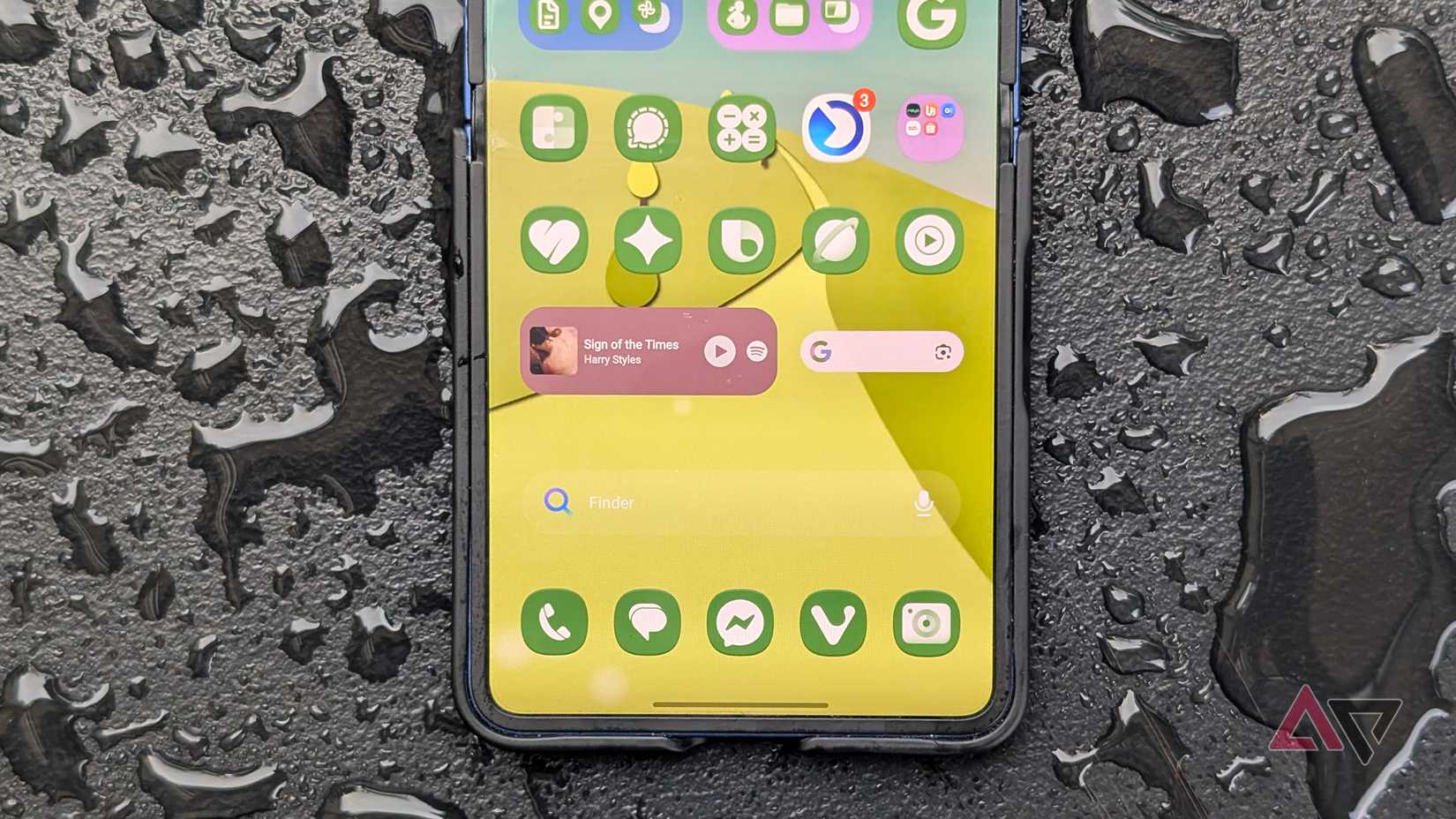
A new customization tool in One UI 9 lets you pin smart Finder to the home screen as a sticky bar.
It is disabled by default, so you need to toggle it on manually. When active, it sits alongside the standard Google search bar.
The nice thing about this addition is that I can disable the Google bar entirely and keep only the local Finder.
It’s remarkably convenient, since I mostly search my phone to track down a specific setting, toggle, or buried menu option.
With Finder on the home screen, I skip the chore of launching Settings and tapping the search icon.
I stopped paying for Android launchers
One UI’s deep customization features let me ditch third-party launchers and save money by never buying custom wallpapers or third-party icon packs again.
Best of all, I don’t need to decipher convoluted settings menus to clean up my home screen, as Samsung’s native tools give me everything I need to build my ideal setup without the headache.
