Mi Home for Controlling Xiaomi Smart Devices on a Windows Desktop

Anyone who has bought a Xiaomi air purifier, a Redmi smart band, or one of those cheap Mijia motion sensors eventually ends up in the same place: the Mi Home app, staring at a QR code and a Wi-Fi password prompt. Published by Xiaomi Inc., it is the control hub for the company’s entire connected lineup, and the official Android app for the ecosystem regardless of which brand name shows up on the box.
What follows is a look at how the app behaves day to day, what the screens look like once you have a few devices paired, and where it gets awkward.
The first screen tells you how your home is organized
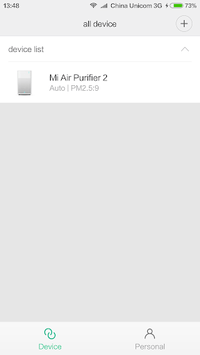
Open Mi Home and you land on a device list, not a dashboard full of graphs. Each paired product sits in a card with its name, its room, and a status line. A lamp shows brightness, a purifier shows PM2.5, a robot vacuum shows battery and whether it is docked.
Tap a card and you drop into that device’s own control page, which is built by the product team rather than by a generic template. The vacuum gets a live map. The purifier gets a dial. The smart plug gets a big power button and an energy readout. This is why the app feels inconsistent: every device page has its own personality.
The top of the screen holds a room switcher. Set up Living Room, Bedroom, and Office early, because with fifteen devices in one undifferentiated pile, finding the right ceiling light turns into a scrolling exercise.
Adding a device, in practice
Pairing is the part people ask about most, and the flow is usually the same. You tap the plus icon, the app scans for nearby Xiaomi hardware over Bluetooth or the device’s own hotspot, and it appears in a “found nearby” prompt before you even reach the catalog.
Three things trip people up here:
- The device must be on a 2.4GHz Wi-Fi band. Most Mijia sensors and plugs do not see 5GHz networks at all, and if your router merges both bands under one name, pairing can fail with no useful error.
- Location permission has to be granted, because Android ties Bluetooth scanning to it. Deny it and the “found nearby” prompt never fires.
- Your account region has to match the device’s region. A gadget bought in China often will not appear in a Mainland-China-excluded server list, and vice versa.
That last point is the one Xiaomi itself flags in the store listing: device support differs by area, and the product manual or official site is the real authority on what works where. It is not a bug, it is how the regional servers are set up.
Automations are where the app earns its place
The scene editor is the feature that turns a drawer of disconnected gadgets into something resembling a smart home. You pick a trigger, add conditions, then stack actions. A door sensor opening after sunset can switch on a hallway light at twenty percent brightness and nothing else.
The editor is honest about what it supports. Triggers include device state changes, time schedules, sunrise and sunset offsets, geofencing based on your phone’s location, and manual taps. Conditions can gate an automation to weekdays, to a time window, or to whether someone is home.
Where it gets clunky is the vertical screen real estate. A scene with four actions and two conditions forces constant scrolling, and reordering actions means long-pressing and dragging in a narrow column. You feel this most when building something elaborate, like a morning routine that staggers lights, the kettle plug, and the air purifier over ten minutes.
Scenes sync to the cloud, so they keep running when your phone is off, which matters because some competing apps execute automations on the handset itself.
Living with it on a Xiaomi phone versus a browser window
On a HyperOS or MIUI device, Mi Home is stitched into the system. Control Center exposes device toggles without opening the app, the Mi Home widget sits on the home screen, and account sign-in is already done. On a non-Xiaomi Android phone, the app works fine, you just lose the system-level shortcuts.
Some people run it on a desktop instead, usually through an Android emulator like BlueStacks, and the appeal is not novelty. The scene editor and the robot vacuum’s room-mapping screen both suffer from that same cramped phone column, and drawing no-go zones with a mouse or laying out a six-step automation while the floor plan stays fully visible is exactly the case guides for the Xiaomi Home app for PC tend to make. Camera feeds benefit too, since a 1080p stream on a monitor shows detail that a phone shrinks away.
The catch is that pairing new hardware still wants a real phone, because the Bluetooth scan and the QR handshake depend on the handset’s radios. Treat the desktop as a management view for devices you already own, not as the place you onboard them.
The parts of Mi Home that quietly do a lot
Beyond toggling lights, there are a few areas that reward poking around:
- Device sharing, which lets a family member control a lamp or a camera from their own Xiaomi account without handing over your login.
- The firmware update panel inside each device’s settings, which is the only reliable way to get sensor and plug firmware current.
- The camera storage settings, where you choose between local microSD recording and cloud clips, and set the motion-detection sensitivity that decides how often you get pinged.
- Energy monitoring on supported smart plugs, which logs consumption over days and weeks rather than just showing a live wattage figure.
Notification control deserves a mention too. Out of the box, a motion sensor will happily alert you every time the cat walks past, and each device has its own notification toggles buried in its settings page. Tuning them is the difference between a useful app and a noisy one.
Where it still feels unfinished
Search inside the app is weak. If you have forty devices, typing a name is faster than scrolling, but the search field does not always surface scenes or settings alongside hardware.
Third-party integration is uneven as well. Many devices expose themselves to Google Home or Alexa, some do not, and the app rarely tells you which category a product falls into before you buy it.
And the regional split remains the sharpest edge. If you own a mix of imported and locally bought Xiaomi gear, you may find yourself logging out and switching servers, which resets your room layout view and leaves half your automations invisible.
None of that stops the morning routine from firing at the set time anyway, staggering the kettle plug and the purifier over ten minutes while the phone sits dark on the nightstand. That part of the app just works, rough edges and all.
Source: Read original article


Comments ()