What the tiny key icon means on your Android device
What the tiny key icon means on your Android device
It's actually a good thing.
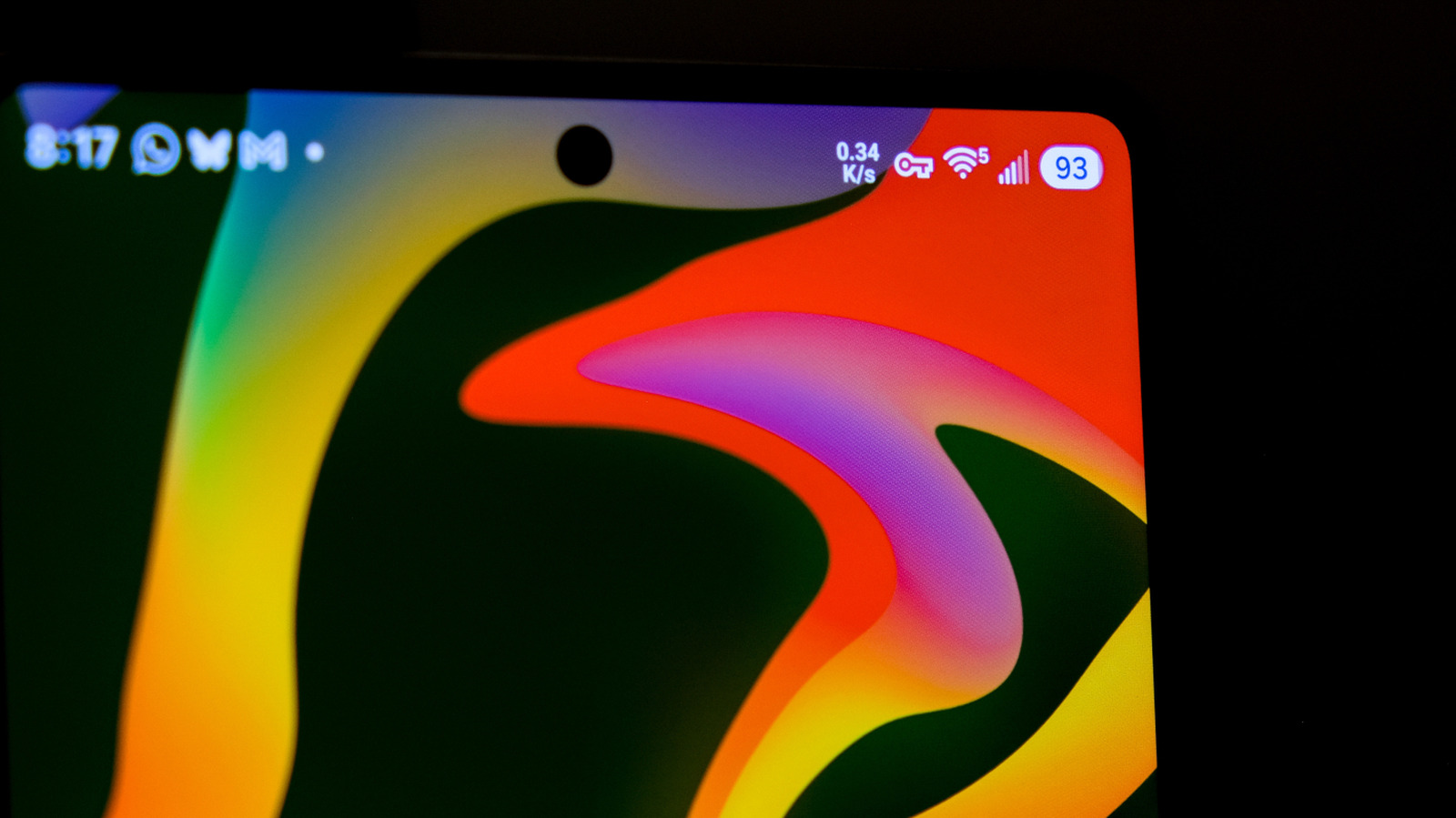
The Android status bar is designed to give users important information at a glance, but all those icons can blur together. One of the most unusual symbols looks like a leftward-facing key with two teeth opposite its circular handle. That icon tells you that your internet connection is encrypted, but there's nothing to worry about.
More specifically, that icon is a visual indicator that you're connected via a VPN that encrypts your web traffic from third parties. Many people consider a VPN crucial for their online security, and modern Android versions support VPNs at the OS level. The key icon, then, lets users know they're safe behind their VPN, while its absence alerts them that their encryption has been broken, giving them a chance to address it.
If you use a VPN but don't want the key icon taking up space in your status bar, you're out of luck. Because it's a security and privacy feature, most Android devices don't have a built-in option to remove the icon. Only Samsung Galaxy owners can do so, and even then, they'll need to download the Good Lock customization suite from the Galaxy Store and go into the QuickStar module to toggle the key indicator and other icons.
How to turn a VPN on or off on Android
The key icon appears only when a VPN is active, so the only way to get rid of it is to disable the VPN. If you're running a third-party VPN, open the app and turn it off from there. Some VPN apps even keep a notification active with a button to turn them off, making it an even quicker process. On a Pixel or other close-to-stock Android device, you can also swipe into Quick Settings and tap the number next to the profile icon at the bottom of the screen to show active background apps, then tap Stop next to your VPN.
If you don't know which VPN you're running, open your phone's Settings app and go to Network & internet > VPN, then tap on it from the list there. On Samsung Galaxy phones, go to Settings > Connections > More connection settings > VPN to find a functionally identical screen. If you are connected to a VPN, it will be shown on a list with text underneath reading "Connected." Tap the running VPN and choose Disconnect. If you are not connected to a VPN, tap a VPN, and you will be taken to its app, where you can connect.
Tapping the settings gear icon next to any VPN will allow you to configure it further. If you want to configure a VPN manually, you can tap the plus icon in the top right, but this is generally recommended for advanced users. For more, see our guide on how to use a VPN. All other aspects of your VPN can be managed within its proprietary app. Since every VPN has a different interface in its app, consult your provider's documentation if you're not sure how to use a feature or setting.
Do you need a VPN on Android?
If you don't use a VPN, you may wonder whether it's worth installing one on your Android phone. How useful one will be depends largely on how privacy-minded you are, your streaming habits and whether you already have a VPN or need to get a subscription first.
A VPN does not fully anonymize you, and there is no silver bullet for online privacy. It will obscure your IP address from networks, ISPs and websites you visit, but there are other ways to identify you. If you're logged into accounts like Facebook or Google that track you across the web, they'll still know it's you; in addition, browsing data like cookies and fingerprinting data from your device's unique combination of hardware and software can still help sites track your activity. It can, however, stop your internet service provider or unscrupulous owners of public networks from viewing your online activity.
Another classic use case is making it appear as though you are somewhere you're not, usually to access geofenced content. For instance, Netflix may offer shows in other countries that it doesn't in your own due to licensing deals, and a VPN will let you set your location to those regions to access that content.
While VPNs offer benefits, they can cause issues when browsing the web. Some websites will treat your device as inherently suspicious when it connects from a VPN IP address, and you may encounter more anti-automation measures such as CAPTCHAs. Some websites may even be totally unresponsive until you disconnect your VPN. Despite that, if you already pay for a service that includes a VPN, it may be worth enabling it to get a taste of what using a VPN is like on your phone. Otherwise, have a gander at our list of the best VPNs in 2026.
Source: Read original article


Comments ()