How to set up Google Authenticator on a new phone
How to set up Google Authenticator on a new phone
Being able to sync codes across devices helps when you need to migrate everything over.
A two-factor authentication (2FA) app like Google's Authenticator can be a huge step toward safer online security, adding an extra layer of account protection. However, it can also be a massive bugbear when it comes to changing devices — especially if your authenticator app is stuck on a damaged or lost phone. Luckily, you can transition to a new machine smoothly.
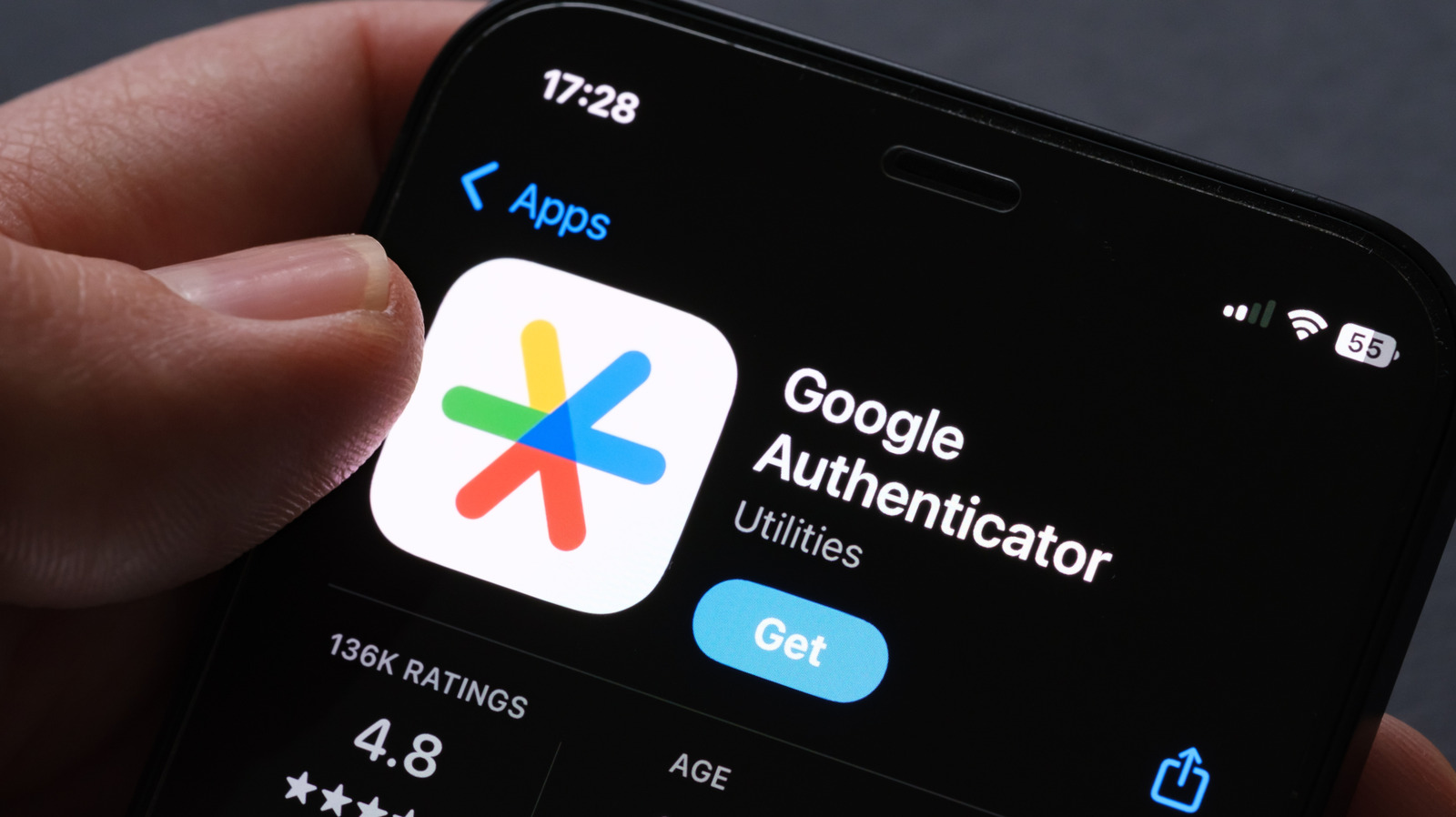
Google Authenticator offers a form of 2FA to users, generating one-time codes in the app that are required to access linked accounts. While these codes have historically been tied to one device and app, Google Authenticator has been syncing one-time codes in the cloud since 2023. This means that, with a little preparation and know-how, switching to a new device with this security app can be a relatively simple process.
How to set up Google Authenticator on a new phone within the app
So long as you're on the right version of the app (6.0 or above on Android and 4.0 or above on iOS), Authenticator will automatically send your codes to the cloud when you're using it with a Google account. If your codes are saved to the cloud on one phone (which you can check by tapping the cloud icon next to your account icon in the app), you'll be able to access them once you install and boot up the app on a new device. Simply continue with the same account on your freshly-procured phone, and your codes should all be moved into their new home.
This method protects you if your old phone is lost or destroyed, but you may still prefer not to have your codes broadcast over your Google network. If you want to use Authenticator without a Google account, you'll need your old device on hand for a manual transfer. Here, you'll want to go to the app's menu in your old phone and navigate Transfer Accounts > Export Accounts. Once you select which codes you want to transfer, your phone will produce a QR code — which can be scanned on your new phone in the same Transfer Accounts area (this time heading to Import Accounts to scan the QR code).
Recovering accounts with Authenticator isn't always easy
Unfortunately, if you don't have your old phone to hand, the latter becomes a little trickier. Having backups via the cloud should be a lifesaver for modern users, but they didn't become available until 2023 — and manual Authenticator transfers for Android devices weren't possible until 2020.
In situations like this, you'll likely have to use different methods for each locked account. What might be a lifesaver here is checking if you're still logged into a certain account on a different device — which will generally allow you to temporarily disable 2FA so you can log back in from elsewhere. Also, if your email and phone are linked to an account, you should eventually be able to recover it, even if that means contacting the account provider to sort things out.
The best way to avoid this sort of headache is to prepare ahead of time as soon as you opt in to Authenticator, whether that's by making sure your codes are saved to the cloud or by creating backup codes, which you can do by opening your Google account and navigating Security & Sign-in > 2-Step Verification and heading to the "Backup codes" section.
Source: Read original article



Comments ()