How to choose the right gaming monitor for you
How to choose the right gaming monitor for you
Refresh rates, size and screen technology all play a part.
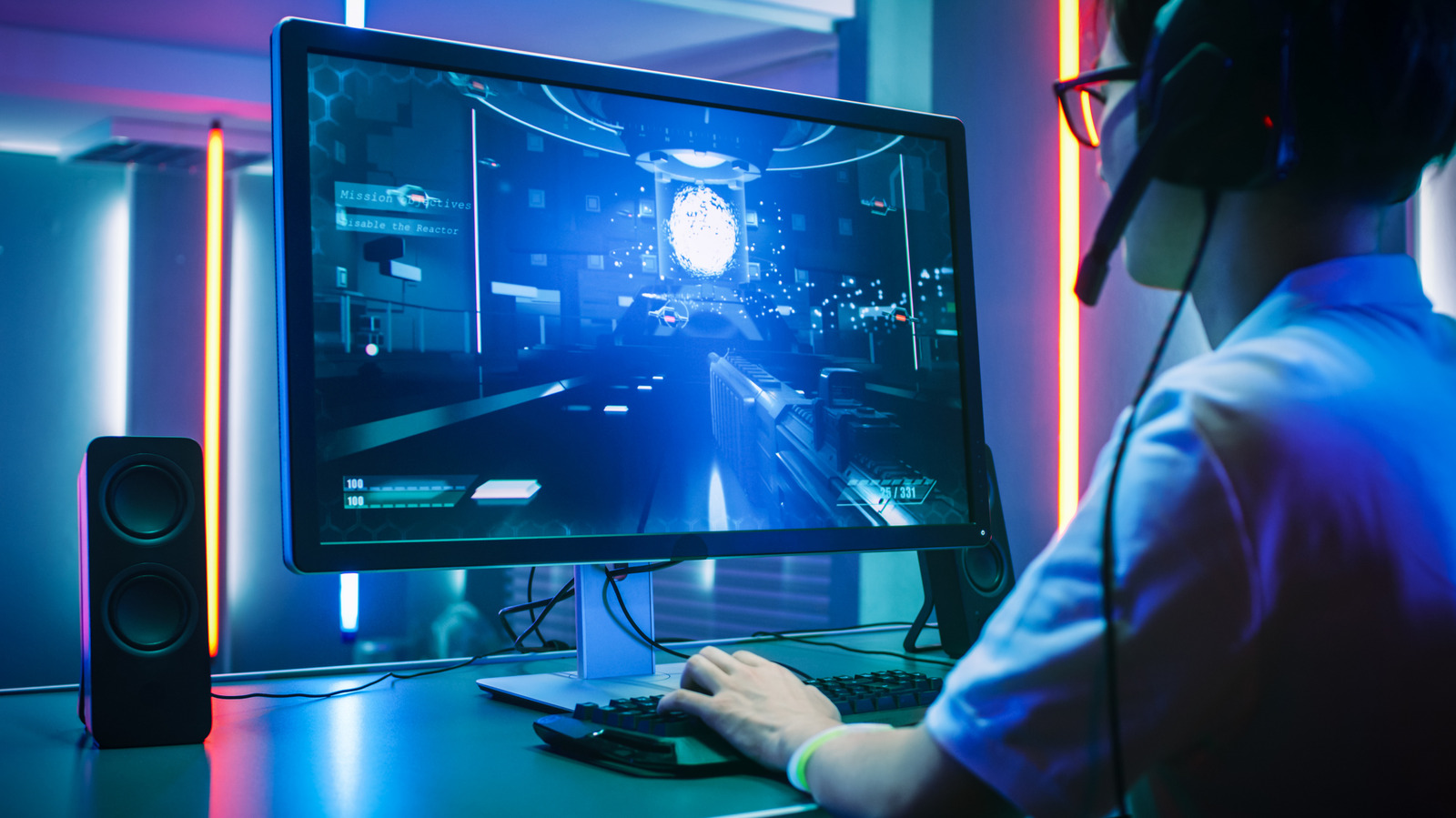
Choosing the right gaming monitor is a lot like choosing the right outfit. You wouldn't wear the same thing to the gym as you would to the opera, while lifting weights in a tuxedo would inconvenience you and damage the tux. Similarly, a monitor that works great for one PC or console isn't necessarily the best fit for another and gamers who enjoy competitive shooters should look for different options than those who enjoy visually rich single-person narratives.
Only you can figure out exactly which monitor you should buy. To do that, you'll first need to understand which specs best suit your needs. Modern monitors have a lot more to them than resolution and frame rate. Different display panel types suit different uses and picture quality can vary between models. A quick crash course on the basics will get you ready to shop for the monitor you'll be happiest with in the long run.
Match your monitor's specs to your PC or console
Before we dive into specs, the first thing to consider when picking a gaming monitor is the existing hardware you'll pair it with. If your PC is decked out with an NVIDIA GeForce RTX 5090 or 5080, you can run games on the bleeding edge of performance and have real reasons to consider a top-shelf monitor with a 4K panel and an ultra-high refresh rate. On the other hand, if you're plugging the monitor into an older or lower-powered GPU, consider the performance you'll actually get in the games you play. If you aren't routinely seeing frame rates above, say, 90 fps, there's no reason to invest in a 240Hz monitor. Resolution and refresh rate move in opposite directions, so if you play competitive shooters and esports titles like Valorant, it's best to sacrifice pixels for higher frames, whereas players of visually rich first-person titles like Control: Resonant can make the opposite trade-off or find a balance in the middle.
Once you know the spec range you're looking for, you can move on to other concerns such as panel type, HDR and brightness support, port selection and VRR technologies like G-Sync. Size and resolution are personal preferences. Resolution is tied to graphical performance, but there are reasons other than gaming to consider a 1440p or 4K display. If you do a lot of photo or video editing, or if you watch a lot of video, a higher resolution can be worthwhile. Size is related to resolution, in the sense that the smaller of two monitors with the same resolution will have a higher pixel density — a finer level of image detail, which can be measured in pixels per inch (PPI).
Esports players often prefer smaller monitors around 24 inches in order to see everything at once, while single-player gamers who value immersion may gravitate toward 27 inches or higher. Larger displays also support multitasking better, but work best when you sit farther back. You'll also need to consider your ideal aspect ratio. A squatter shape is better for productivity tasks, but 16:9 widescreen is the de facto aspect ratio for gaming. Some gamers enjoy ultra-widescreen monitors to fill their peripheral vision, but in games where HUD information is crucial, ultrawide displays can force you to look away from the action.
Refresh rate and response time
Refresh rate is often considered the most essential specification when choosing a monitor, and should be the first thing you settle on. As noted above, your GPU should dictate this. Monitors are now shipping with up to 1,000 Hz in lower-resolution modes, at which point you'd question whether you can see the difference even if you could push your hardware that far.
The average PC gamer in September 2026 was running an RTX 5070, 5060, 4060 or even a 3060, according to the Steam Hardware Survey. Accordingly, the sweet spot for the average gamer is likely to land somewhere from 144Hz to 240Hz on a 1440p or 1080p panel. If you have a similar configuration but want to play competitive, lightweight games, you may want to look for a 1080p panel with a significantly higher frame rate. Players of these titles with top-end hardware (such as an RTX 5080 or 5090) can look for 1440p or 4K panels at any refresh rate.
That said, only you can determine the real-world frame rates you're getting on your hardware. One way to do that is to turn on the Steam, NVIDIA, or Xbox in-game overlays while playing and enable the small heads-up frame rate counter they offer. You can also use a benchmarking tool like 3DMark and some games, including Cyberpunk 2077, have built-in benchmark tests. Even if your current monitor can't reach high frame rates, you'll still see a readout showing how many frames per second your graphics card is producing.
After playing multiple games that are representative of your general interests, note where you saw the highest frame rates. Unless you plan to upgrade your GPU in the next several years, there's no need to overspend on a monitor with an unachievably high refresh rate for your system.
If you're looking for a monitor to use with a console, it's worth noting that even the best current-generation consoles like the PlayStation 5 Pro or Xbox Series X don't exceed refresh rates of 120 Hz. That means you're better off putting your money toward a larger or higher-resolution monitor instead of buying a panel with blistering speeds you'll never utilize.
Is an OLED monitor right for you?
After determining the refresh rate, resolution and aspect ratio ideal to your setup, the biggest choice you'll make is the type of panel your monitor is fitted with. For most gamers, the two best choices are OLED and Fast IPS, in that order.
OLED is well known for its technically infinite contrast ratios, accurate colors and near-instant response times. Because each pixel is self-emissive, it produces its own light rather than relying on a backlight; OLED pixels simply do not illuminate where an image is truly black, meaning they stay black rather than turning dark grey in the way LCD panels do. That makes them ideal for gaming, especially if you value HDR performance.
However, OLED displays have their drawbacks. They require more care to prevent OLED burn-in, a condition in which leaving a static image on screen for too long leaves a permanent ghost of that image on the screen. Newer OLEDs address this with pixel-shifting that slightly moves the picture around and pixel-cleaning cycles that help keep wear and tear even across the display. If you're the sort of person who leaves your monitor on for hours when you're not using it, an OLED will force you to change that behavior.
OLEDs are also dimmer than LCDs and are consequently worse in well-lit environments. Some manufacturers offer matte coatings on their OLED models, which can help, but these displays look best in a dim or dark room. Text fringing is another issue, as is motion flicker and while the latest generation of OLED has come a long way in minimizing them, gamers who also work with documents and spreadsheets should take those issues into consideration before paying the higher cost for an OLED. Thatcost is perhaps the biggest downside, as even entry-level OLEDs start around $400 in late 2026. If you do choose to go OLED, scout for sales.
LCD panels lack the sheer wow factor of OLED, but they are more versatile. There are a range of LCD types, but Fast IPS is generally the best for gaming. IPS panels deliver excellent colors, great viewing angles and they have very consistent performance. However, regular IPS can introduce significant motion blur, which is reduced in a Fast IPS panel. For users who game in bright environments, plan to do productivity work on their gaming PC, or are on a budget, Fast IPS is an easy recommendation.
Variable refresh rates
Gaming on a PC can be uneven, and one of the most frustrating issues you'll commonly encounter is screen tearing. This occurs when the GPU cranks out frames at a different rate than the monitor shows them, so the display shows parts of two frames at the same time. Substantial tearing can completely ruin a gaming session, but there's a surefire fix for screen tearing: variable refresh rate (VRR) technology. NVIDIA G-Sync, AMD FreeSync and the generic Adaptive Sync are all examples of VRR.
For a deeper dive, check out our article on screen tearing and how to fix it, but the bottom line is that you'll want G-Sync or FreeSync on your monitor. By now, it's an industry standard and you won't need to spend much extra money, if any, to get a monitor that has one of those two certifications.
G-Sync can cost extra because it uses a hardware module inside the monitor. However, NVIDIA has certified plenty of monitors as G-Sync Compatible. This means that a monitor doesn't need that module to work with G-Sync. Many FreeSync monitors are G-Sync Compatible.
Console gamers can completely ignore G-Sync, as no console uses an NVIDIA GPU. The Xbox Series X and Series S support FreeSync because of their AMD hardware, while the PlayStation 5 and PS5 Pro support only HDMI 2.1 VRR.
Regardless of your hardware, VRR only works with the right cable. Make sure you're using a cable with at least DisplayPort 1.2a. If you're using HDMI, some HDMI 1.4 and 2.0 connections will support VRR, but the most robust support comes with HDMI 2.1 onward.
Source: Read original article



Comments ()