

JavaScript is a powerful scripting language that enhances the functionality of websites by enabling dynamic and interactive elements.
Many websites rely on JavaScript for features such as animations, form validation, and interactive menus.
If JavaScript is disabled on your iPhone, certain web pages may not function properly or may appear broken when viewed in the Safari browser.
If you are experiencing issues with website functionality, you may need to enable JavaScript on your device.
Below is a detailed guide on how to turn on JavaScript in Safari on an iPhone.

Steps to Enable JavaScript on an iPhone
- Open the Settings App
- Locate and tap the Settings app on your iPhone’s home screen.
- Scroll Down and Select Safari
- In the Settings menu, scroll down until you find Safari and tap on it.
- Access the Advanced Settings
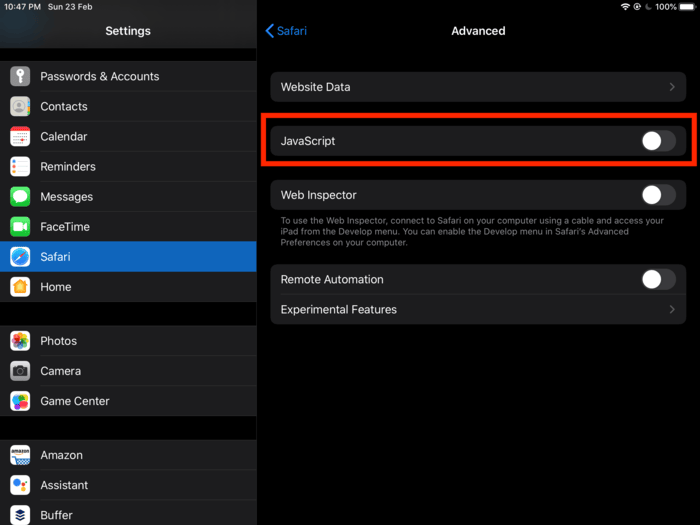
- Continue scrolling down within the Safari settings until you see the Advanced option. Tap on it to access advanced browser configurations.
- Turn on JavaScript
- Find the JavaScript toggle switch and turn it on by tapping it. When enabled, the switch will turn green.
After enabling JavaScript, your iPhone will be able to process JavaScript-based elements on websites, ensuring a smooth and interactive browsing experience.
Enabling Both JavaScript and Cookies on an iPhone
If you need to enable both JavaScript and cookies for a better browsing experience, follow these additional steps:
- Open the Settings app on your iPhone.
- Scroll down and tap Safari.
- Under the Privacy & Security section, locate Block All Cookies and make sure it is turned off to allow cookies.
- To enable JavaScript, go to Safari > Advanced > JavaScript and turn the switch on.
This will allow websites to remember your preferences, keep you logged in, and display dynamic content properly.
How to Enable JavaScript in Other Web Browsers?
Google Chrome (iPhone & Desktop)
- Open the Chrome browser.
- Tap the three-dot menu in the top-right corner (or bottom-right corner on iPhone).
- Select Settings from the menu.
- Scroll down and tap Privacy and Security.
- Tap Site Settings, then select JavaScript.
- Make sure JavaScript is set to Allowed.
Google Chrome (Android)
- Open the Chrome browser on your Android device.
- Tap the three-dot menu in the top-right corner.
- Select Settings and go to Site Settings.
- Tap JavaScript and turn it on.
Mozilla Firefox
- Open Firefox on your device.
- Tap the menu button (three horizontal lines) in the top-right corner.
- Select Settings (or Options on a desktop).
- Scroll down to Privacy & Security.
- Find the Permissions section and ensure JavaScript is enabled.
Microsoft Edge
- Open Edge on your device.
- Click on the three-dot menu in the upper-right corner.
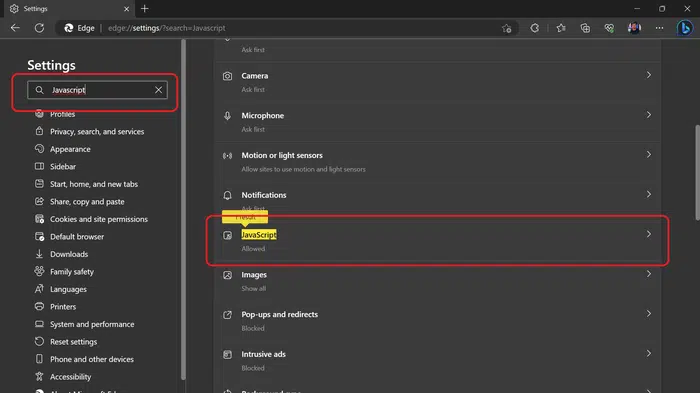
- Select Settings and navigate to Cookies and site permissions.
- Scroll down and click JavaScript.
- Toggle the switch to Allowed.
Common JavaScript Issues and Troubleshooting
If JavaScript is enabled but web pages are still not working correctly, consider the following troubleshooting steps:
- Check for Errors in the Browser Console: Open the developer tools in your browser and inspect the console for error messages.
- Clear Browser Cache and Cookies: Old cache files or cookies may interfere with JavaScript execution. Clear your browser’s cache and try again.
- Disable Browser Extensions: Some browser extensions may block JavaScript. Temporarily disable them and test if the issue is resolved.