Samsung hides these useful camera features by default — here’s how to unlock them
Affiliate links on Android Authority may earn us a commission. Learn more.
Samsung hides these useful camera features by default — here's how to unlock them
Nov 2, 2026 — 5:00 AM ET
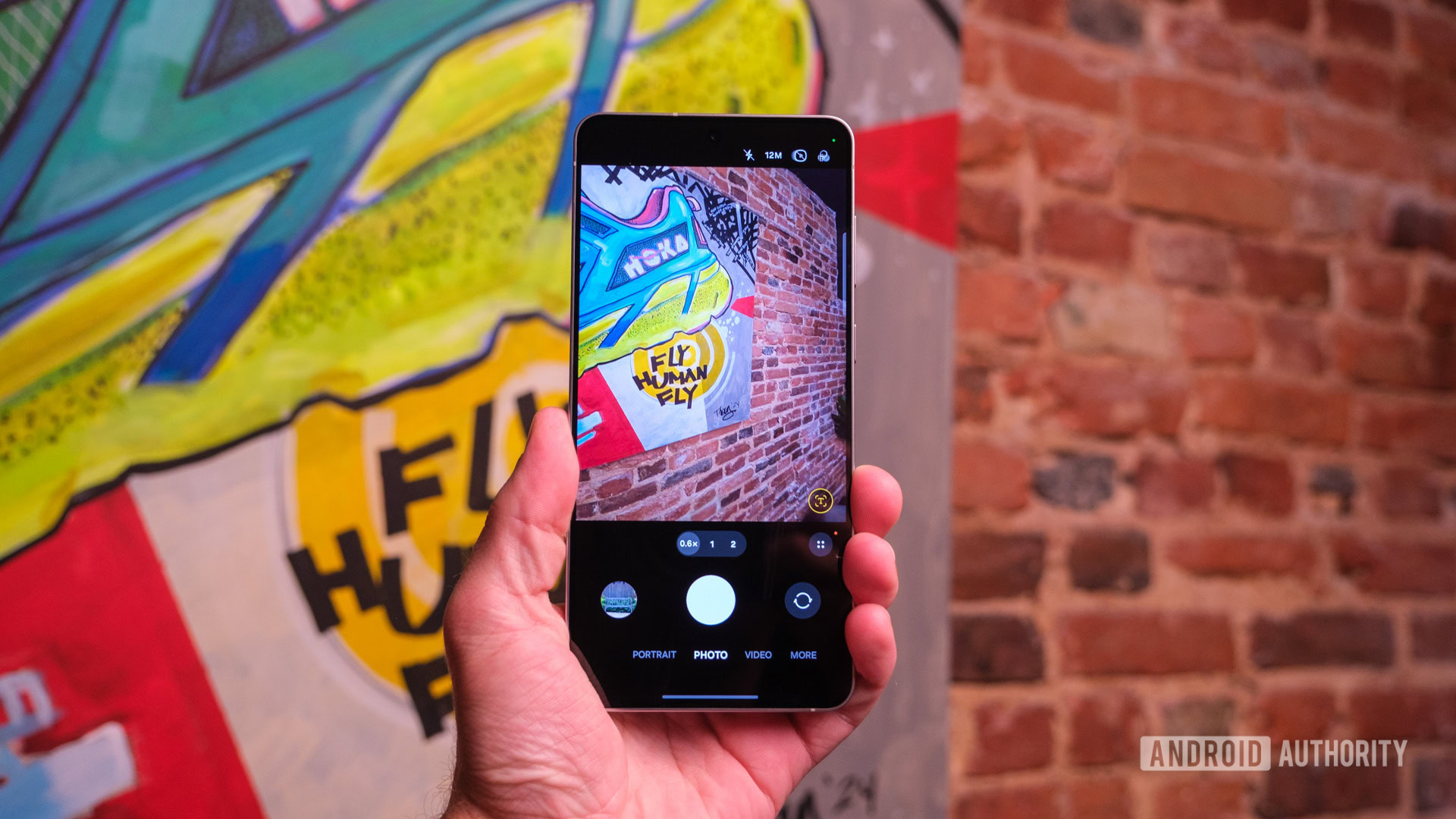
Samsung’s Camera app is decent, and its settings menu lets you control the usual stuff like photo format, location tags, shooting methods, and more. But there’s an entire second settings menu that offers even more — stuff that lets you manage automatic lens switching, HDR, capture speed, and even what shows up on your viewfinder. I’m talking about the Camera Assistant module — one of my favorite Good Lock modules. It’s not available by default, but it can change the way you use your Galaxy phone’s camera.
Which Camera Assistant feature do you find the most useful?
What is Camera Assistant, and how do you get it?

Camera Assistant is a Good Lock module that offers useful camera settings you won’t find in the default Camera app menu. To get it, you first need to download the Good Lock app if you haven’t already. Open it, find the Camera Assistant module, and then download it.
You can then access Camera Assistant one of three ways — use its shortcut in the app drawer, open Good Lock and tap the module, or select Camera Assistant inside Camera Settings. Once you’re in, you’ll see a long list of options for tweaking the camera experience.
These Camera Assistant features are too good to miss
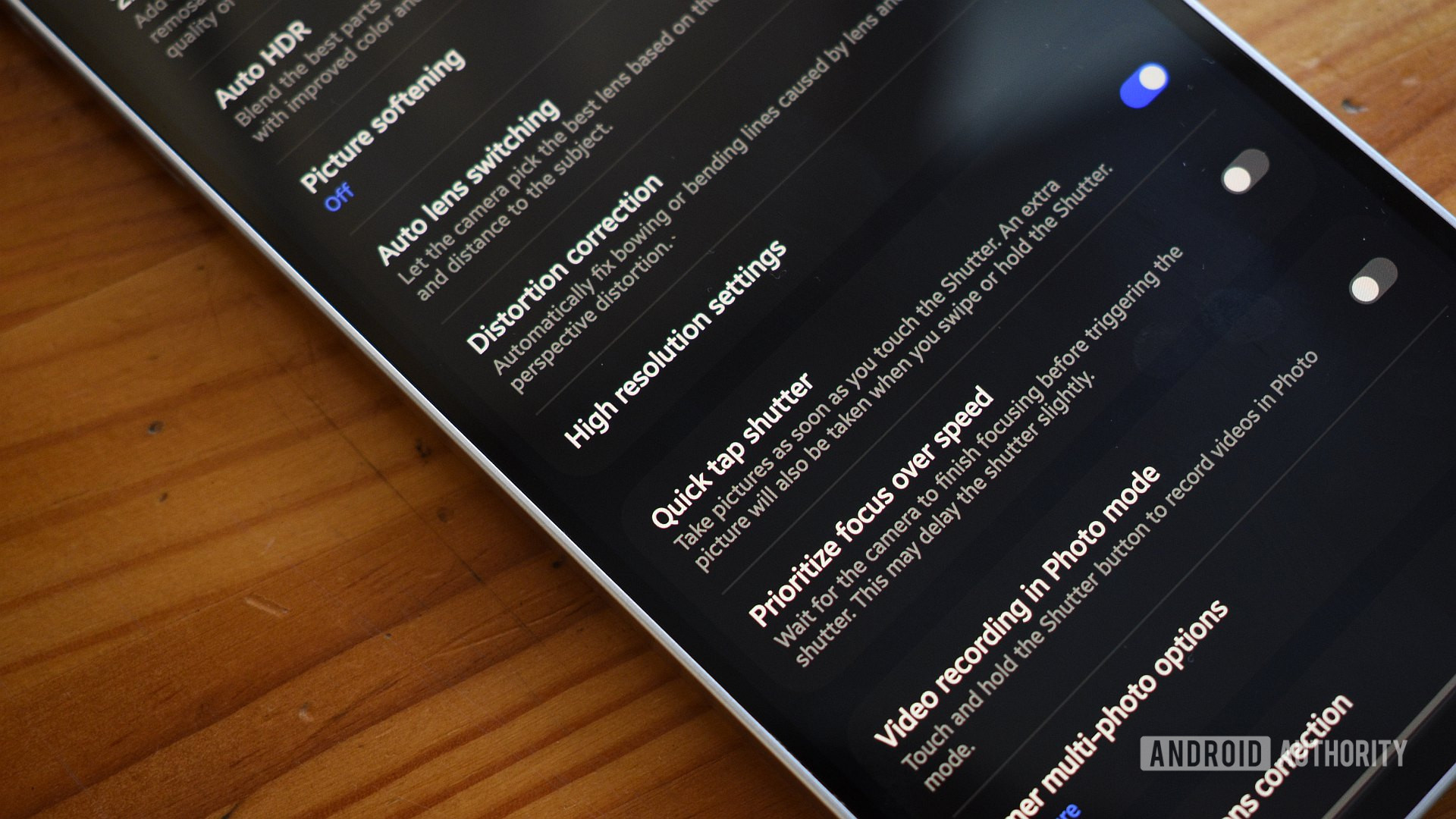
Camera Assistant includes all kinds of options, and it can feel a bit overwhelming. I’ve used it extensively, so here are the most interesting features this module unlocks.
Quick tap shutter: By default, the Samsung Camera app takes half a second to capture everything in the best possible quality. And yes, that’s a good thing — but it can also sometimes cause you to miss those special moments when your kid or dog does something adorable. Camera Assistant includes an option called Quick tap shutter that can fix that tiny delay between you tapping the shutter and the photo actually being taken.
If you prefer it the other way around, where you want the photo taken with more detail, you can enable the Prioritize focus over speed toggle instead. This tells the camera to wait until it’s actually nailed focus before capturing anything.
Timer multi-photo options: Setting a timer is helpful when you’re trying to take a group photo, but by default, the camera app only captures a single photo when the countdown ends. With Timer multi-photo options inside Camera Assistant, you can make the app take 3, 5, or as many as 7 photos after the timer ends, and you can even choose the interval between each shot.
Record GIFs: When you swipe the shutter button to the edge in the camera app, it takes a burst shot, which is useful if you’re trying to capture a fast-paced movement. But you can also configure that same shutter swipe to record a GIF instead. It’s a fun way to capture a GIF directly instead of creating one using still photos.
Stop auto HDR: The Samsung Camera app often gets called out for over-enhancing photos, sometimes to the point they look fake. Automatic HDR plays a huge role in this, and the Camera Assistant menu lets you turn it off. This stops the camera app from over-enhancing your photos, which is great if you want photos to look more natural and closer to real life.
Stop auto lens switching: You might not have noticed this, but your Samsung phone automatically switches between camera lenses depending on lighting, zoom level, and what you’re shooting. If you zoom in or out, for instance, the phone may swap between the primary wide sensor and telephoto or ultra-wide to get the best shot. This is generally helpful, but if you want more control, you can turn off the Auto lens switching option and switch between camera lenses yourself.
Additional modes: The More tab inside the camera app already includes options like Panorama, Slow Motion, Hyperlapse, Portrait Video, and Pro mode. Camera Assistant can unlock a few more options here. Go to the Additional Modes section inside Camera Assistant, and you’ll find toggles for Night, Single take, and Dual rec. My favorite here is dual recording, which lets you record using both the front and rear cameras simultaneously. It’s perfect for capturing something while also recording your own reaction to it.
Customize indicators: The top bar inside the camera app shows a few useful shortcuts like flash, resolution, motion photo, and filters, while options like timer, face detection, ratio, and exposure are tucked behind the Quick Controls menu (the four dots). Camera Assistant lets you customize that top bar and move these shortcuts around. Go to Customize indicators inside Camera Assistant, choose Photo indicators or Video indicators, then use the toggles to show or hide whatever you want.
Upscale digital zoom: Once you zoom in far enough, the photo resolution starts dropping automatically since you’re essentially cropping into the sensor rather than using a dedicated lens. Upscale digital zoom is a feature that can scale the cropped image back to your set resolution. This won’t magically add more details to the shot, but it’ll make it look slightly better.
Dim screen while recording: This one isn’t for everyone, but if you use your Samsung phone to capture long videos, there’s no point keeping the screen at full brightness. It simply drains your phone’s battery unnecessarily. Camera Assistant includes an option called Dim screen while recording that automatically dims the screen after a minute of no input. You can also increase the wait time to 3, 5, or 10 minutes.
Samsung shouldn’t hide these features

Camera Assistant is available on most mid-range and flagship Galaxy phones, but the exact options you see can vary depending on the exact model. If you have a Z Flip 8, for instance, you’ll see a Mirror View option. This lets you use the cover display as a digital mirror, complete with up to 120fps and edge lighting. So yes, you can expect to find a few more camera settings than what we’ve just covered. The only thing that bugs me about Camera Assistant is that it’s hidden by default — and it’s not something you’re likely to stumble upon either.
Either way, Camera Assistant is definitely worth exploring. And don’t be afraid to experiment — if you end up flipping too many toggles, the app also lets you reset everything and start over.
Source: Read original article


Comments ()