My Files on One UI 9.5 makes freeing up storage easier than ever
One UI 9.5 is packed with some big upgrades, but if there's one thing I think everyone's going to appreciate, it's what Samsung's done with My Files.
The app now gives you a lot more ways to free up storage without digging through a dozen menus.
I tried it almost immediately after upgrading to the One UI 9.5 beta on my Samsung Galaxy S26, and it helped me free up 25GB of storage.
At this point, I don't think I'll be reaching for third-party cleaner apps like SD Maid anymore.
My Files now includes a dedicated storage cleanup tool
Samsung finally built the cleaner we needed
Samsung's My Files has offered a dedicated storage breakdown menu for a while now, and it's really helpful for reviewing old media, downloads, APKs, and unused apps on your Galaxy phone.
With One UI 9.5, though, it now shows one more section called Removable other files. This basically lists files that fall under the "Other" category in your phone's storage menu.
My Files now lets you review such files directly from its Manage storage menu.
The good thing here is that the app automatically excludes any files that are critical, so you don't have to worry about deleting anything important.
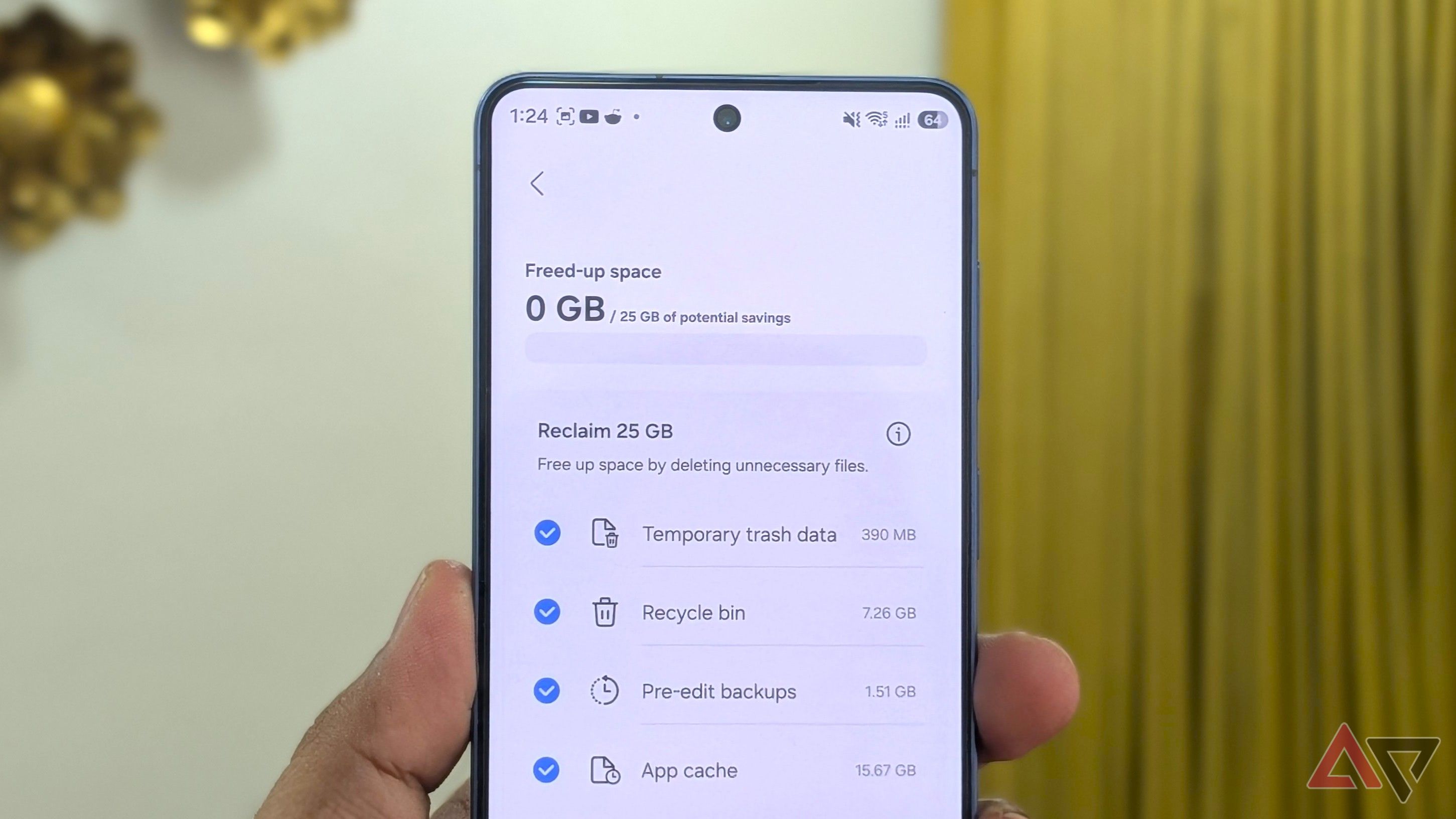
The bigger change here is that My Files now shows a Free up space option right at the top. Tap it, and you'll see a few suggestions for freeing up storage by deleting unnecessary files.
These include emptying the recycle bin, deleting log files and pre-edit backups, and clearing app caches. These are storage hogs that are easy to overlook.
With these two new additions, freeing up storage on your Galaxy phone is easier than ever.
It helped me free up 25GB of storage in an instant
25GB of junk I would've otherwise ignored
When I installed One UI 9.5 on my Galaxy S26, I was already struggling with storage. My phone storage was nearly full.
So one of the first things I did after the update was head to My Files > Manage storage and tap the Free up space option at the top.
It took a few seconds to scan, and when it finished, My Files showed suggestions for freeing up a whopping 25GB of storage.
In my case, the suggestions fell into four categories: Pre-edit backups, Recycle bin, Temporary trash data, and App cache. Each one showed exactly how much storage it was taking up.
Tapping the "i" icon gave me a quick rundown of what each category actually includes.
- App cache: Temporary files that apps create and use to load faster. My Files lets you clear all app caches at once with this option.
- Recycle bin: This includes stuff you've already deleted from My Files, Gallery, Voice Recorder, and other apps within the past 30 days.
- Temporary trash data: Data from files permanently deleted from Trash. This isn't a big deal because it's automatically removed after 24 hours.
- Pre-edit backups: Original versions of photos and videos you've edited, which your phone keeps in case you want to undo changes.
- Log files: This one didn't show up on my phone, but it basically includes diagnostic logs that apps generate to keep track of errors, updates, and other activity.
These are all generally safe to delete. So, from here, I simply had to select everything and hit Delete.
The biggest storage hog in my case was app caches, and I'm glad there's finally a way to clear them all up at once.
On most other phones, you still have to open the app info page of every app and clear its cache individually, which nobody actually has the patience for.
Clearing app caches isn't something you need to do often, but there's no harm in doing it every few months or whenever storage gets tight.
It's by far the easiest way to free up storage on a Galaxy phone without deleting any apps or photos.
Freeing up storage has never felt this easy
Managing storage is one of the biggest concerns for most Galaxy users, especially now that Samsung has ditched the SD card slot for most of its flagship phones, including my Galaxy S26.
Besides the new Free up space option, My Files also offers some pretty useful suggestions in the storage breakdown menu. You can use this section to track down large files and duplicate files taking up space on your phone.
It also shows you compressed files you've already extracted and probably don't need anymore, along with APKs you've already installed and can delete.
My Files now even lets you dismiss individual suggestions. So, if you don't want the app to keep asking you to review unused apps on your phone, for instance, you can remove that suggestion.
Source: Read original article



Comments ()