


Jade Bryan is a Feature Author at Android Police with over a decade of tech reviews and news reporting experience, stretching back to the Symbian era and the early days of Android. He covers the breadth of the mobile industry, specializing in operating system deep-dives, app testing, and hardware analysis.
In his spare time, you can find him tinkering with his Android devices and wearables, seeking ways tech can improve daily life. He also enjoys playing MMORPGs, traveling, or feeding stray cats and dogs.
For years, I’ve stuck with a pair of (cheap) earbuds that will last me years, outlasting many of my smartphones.
It’s one of my cardinal rules: I don’t spend more than $100 on wireless earbuds.
My previous earbuds were modestly priced, like the Oppo Enco Air and Sudio Tolv, but worked fantastically, delivering solid sound without emptying my wallet.
I upgraded to the SoundPeats Air 5 Pro+ last year, and they tick more boxes than before, adding high-res sound support that pairs well with my Google Pixel 9 Pro XL.
I also used them on my Samsung Galaxy Z Flip 7 for many months, but I found the audio quality had been downgraded and wasn’t the same as on my Pixel.
I thought it was missing audio codec support or faulty earbuds, but it turns out there’s a hidden switch in Developer Options and Bluetooth settings I needed to flip to unlock maximum audio quality.
I was cruising on high-res audio happily on my Pixel
Until I hit the wall with my Samsung phone
While rocking my SoundPeats earbuds, I connected them to my Pixel phone by default.
I mostly used the companion app I downloaded from the Play Store to tweak the equalization and profiles.
LDAC was also enabled out of the box, so I didn’t need to access the Android system’s developer tools.
All I needed to do was enable LDAC in the app and leave it as is, and I instantly got crisper bass and vocals every time I streamed on Spotify or YouTube Music.
Only this year did I realize I don’t get the same fidelity when streaming from my Flip smartphone.
One time, I had “Dancin” playing, and I noticed the vocals were slightly flatter than on my Pixel.
I checked again with one of my favorite songs, “Easy On Me” by Adele, and I noticed subtle but noticeable differences in vocal clarity.
I switched to Billie Eilish’s “Bad Guy” to check the bass and instruments, and to my surprise, the low frequencies sounded softer.
I assumed this was due to the equalizer profile I chose on my Galaxy Z Flip 7, but I checked, and it was on the default.
That led me to open the SoundPeats app, expecting I had accidentally turned off LDAC. But no, the toggle was clearly on.
I was confident my Flip supported high-res codecs like my Pixel, or even better, so I assumed there was an unflipped switch or that my device might be defective.
Ensure this developer toggle is on
But the implementation is different for Samsung devices
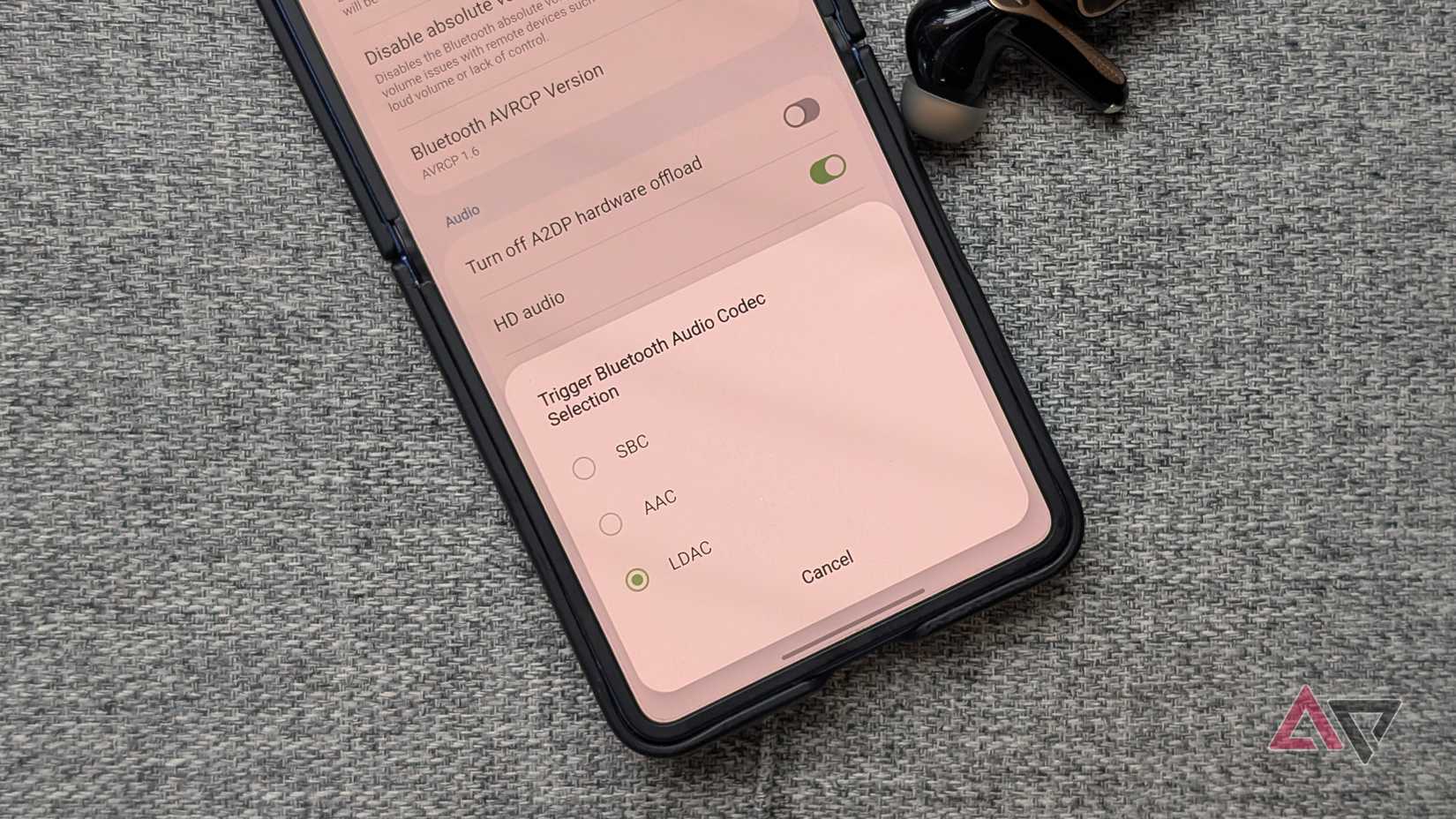
I know Developer Options has extra Bluetooth settings, so I quickly unlocked developer mode to access them.
In Developer Options, I scrolled down to Bluetooth and looked for HD audio, which unlocks high-res quality and a higher-bitrate codec.
When I checked, the HD audio switch was on.
However, I noticed that the Bluetooth Audio Codec was set to AAC instead of the higher, faster LDAC.
Worse, the sample rate and bit rate were stuck at lower levels, similar to AAC.
On my Pixel, I can set a 96kHz sample rate and 32-bit depth, which suggests LDAC wasn’t truly engaged on my Samsung device.
I also double-checked in the SoundPeats app, but it showed LDAC was active.
I suspect there must be another master switch on my Galaxy device or in One UI that differs from stock Android.
Master LDAC switch in Bluetooth settings
A buried toggle unlocks the higher resolution
Next, I checked my earbuds’ paired Bluetooth settings.
When checking, make sure you are connected to the phone, then tap the gear icon beside the device name.
On that settings page, I found that the LDAC toggle was off. It differs from my Pixel’s Bluetooth menu, which doesn’t show a dedicated LDAC switch.
Instead, it lists Spatial Audio and Bluetooth LE, but not a separate switch for high-res streaming.
When I flipped it on, I returned to Developer Options, and both the sample rate and bit sample were automatically pushed to the highest gear.
This was the master switch, and it supersedes the controls in the developer menu.
I’m not sure whether this applies to all Samsung Galaxy devices that support LDAC and high-res codecs. So I advise checking the system’s Bluetooth settings to get the best performance from your earbuds.
If LDAC doesn’t trigger, go into Developer options and manually check HD Audio to see whether it is enabled.
Control LDAC playback quality
Why I skip the default adaptive bit rate
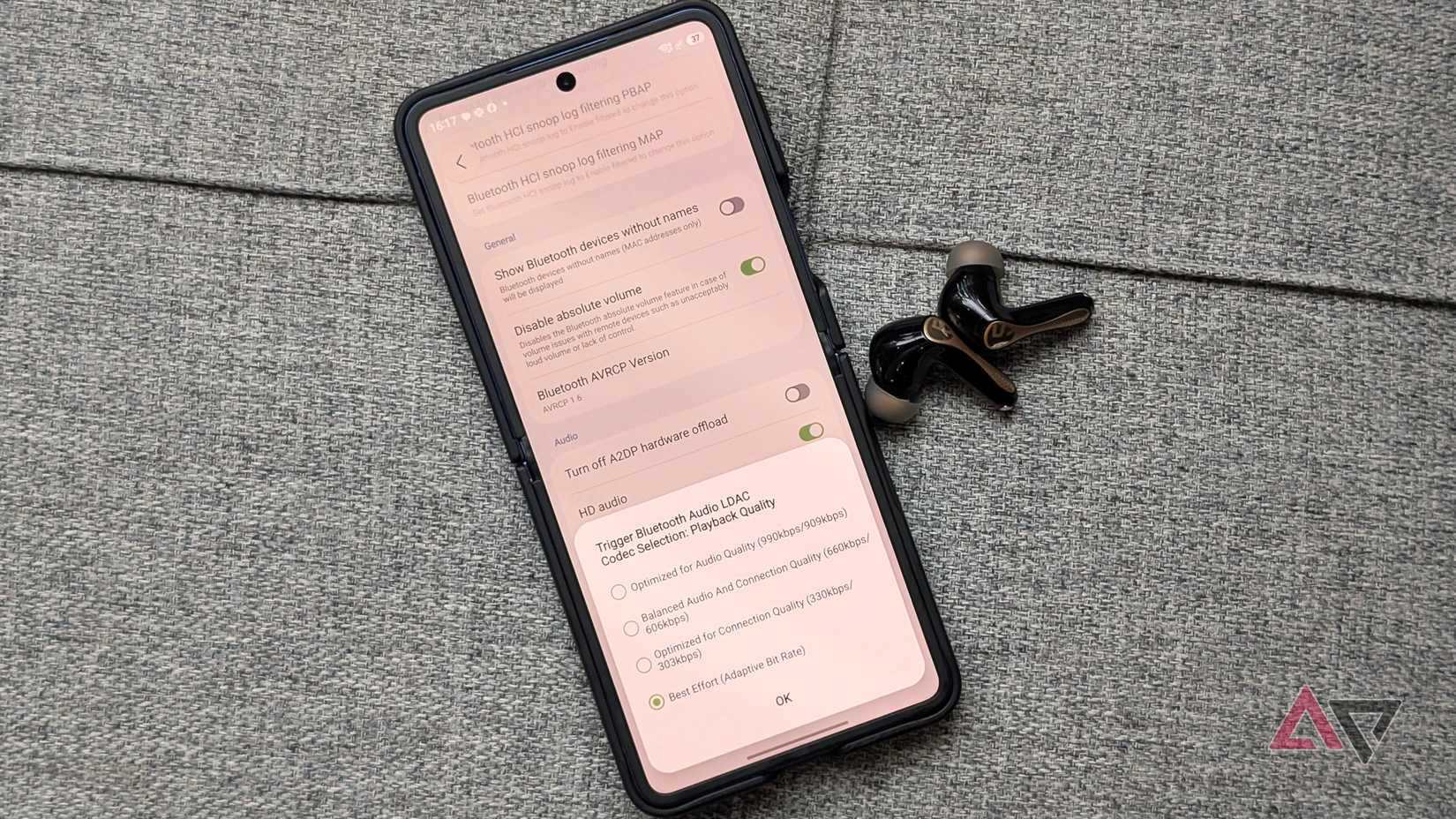
In addition to checking HD audio, I switched the LDAC playback quality to Optimized for Audio Quality instead of Adaptive bit rate.
With Adaptive bit rate, the system dynamically switches between 330kbps for the best connection, a balanced 660kbps, and priority audio quality at 990kbps.
With the Audio Quality option, it locks the transfer rate to the ceiling at 990kbps. However, a few times I noticed the connection drop, causing a sudden audio stutter.
It’s not constant, but when it happens, it can be frustrating, especially during longer listening sessions.
I tested the balanced audio and connection preset, which maxes out at 660 kbps. I think it’s the right middle ground, and I haven’t experienced playback hiccups since.
You can also test the highest bit rate first and see if you run into connection drops. If not, you can leave it set indefinitely.
Getting high-res audio on your earbuds shouldn’t be complicated
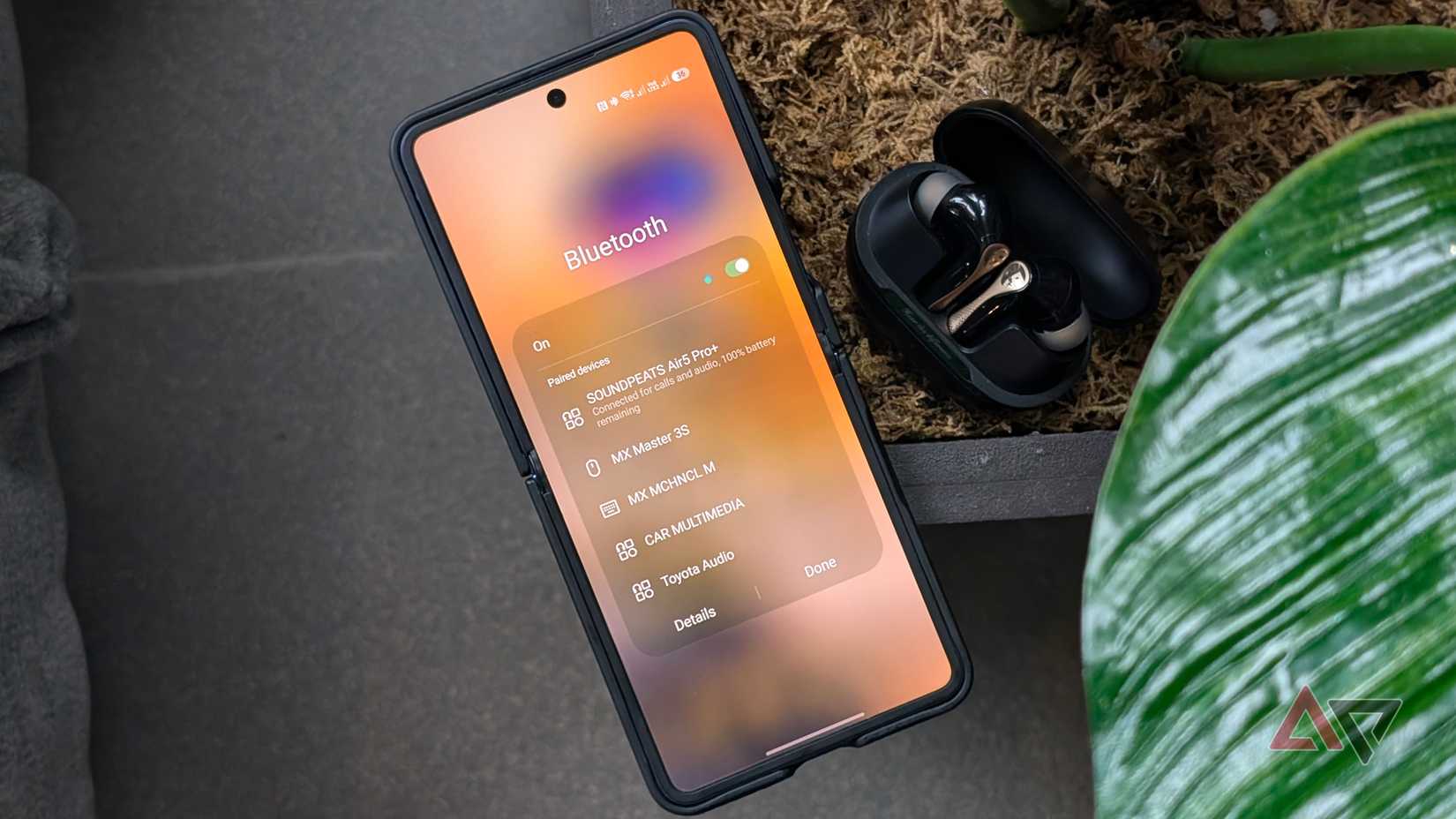
These audio toggles aren’t only for earbuds with high-res audio, but they are also useful for maximizing wireless headphones in general.
You can always unlock Developer Options alongside your Bluetooth menus to make sure you are getting the best audio setup, for example, by enabling AAC rather than falling back to SBC.
Are these extra steps really worth spending a few minutes digging through buried settings?
Absolutely, even if Samsung and Google seem determined to make the sound controls so confusing that only a user with a rocket science degree can easily find and fix them.
